Introduction
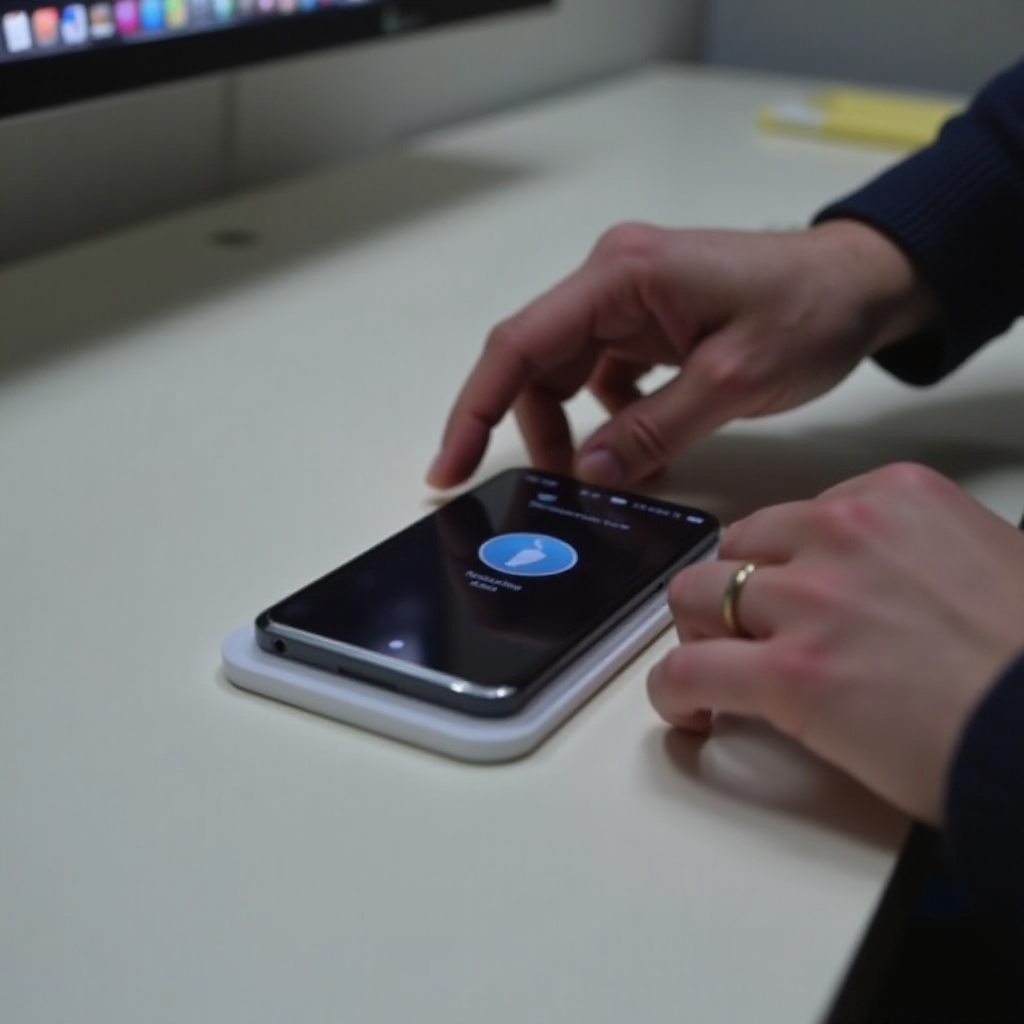
Screenshots play a vital role in capturing and sharing content from our smartphones. On the Samsung S25, you have a suite of powerful options to save what’s on your screen. This comprehensive guide will walk you through all available methods, enabling you to screenshot like a pro on your Samsung S25.

Exploring Screenshot Methods on Samsung S25
Screenshotting on the Samsung S25 can be done through various intuitive methods. Each provides a unique way to capture your screen, with simplicity and efficiency.
Physical Button Method
The physical buttons on your Samsung S25 offer a straightforward approach:
- Find the power and volume down buttons.
- Simultaneously press and hold these buttons.
- A quick screen flash indicates a screenshot was taken.
Though quick, this method can pose challenges in handling, particularly during single-handed use.
Palm Swipe Gesture
The Palm Swipe feature is designed for those who prefer uninterrupted interaction with their device:
- Enable the feature: Navigate to ‘Settings’ > ‘Advanced features’ > ‘Motions and gestures’ > ‘Palm swipe to capture’.
- Swipe the edge of your hand across the screen to capture.
With this gesture, users avoid button juggling, making it an appealing option for smooth operation.
Using Bixby Voice Commands
Samsung’s Bixby offers voice-command screenshot features that enhance user convenience:
- Activate Bixby by saying, ‘Hey Bixby, take a screenshot’.
- Bixby proceeds to capture the screen promptly.
This enables hands-free operation, perfect for multitasking situations.
Advanced Screenshot Features on Samsung S25
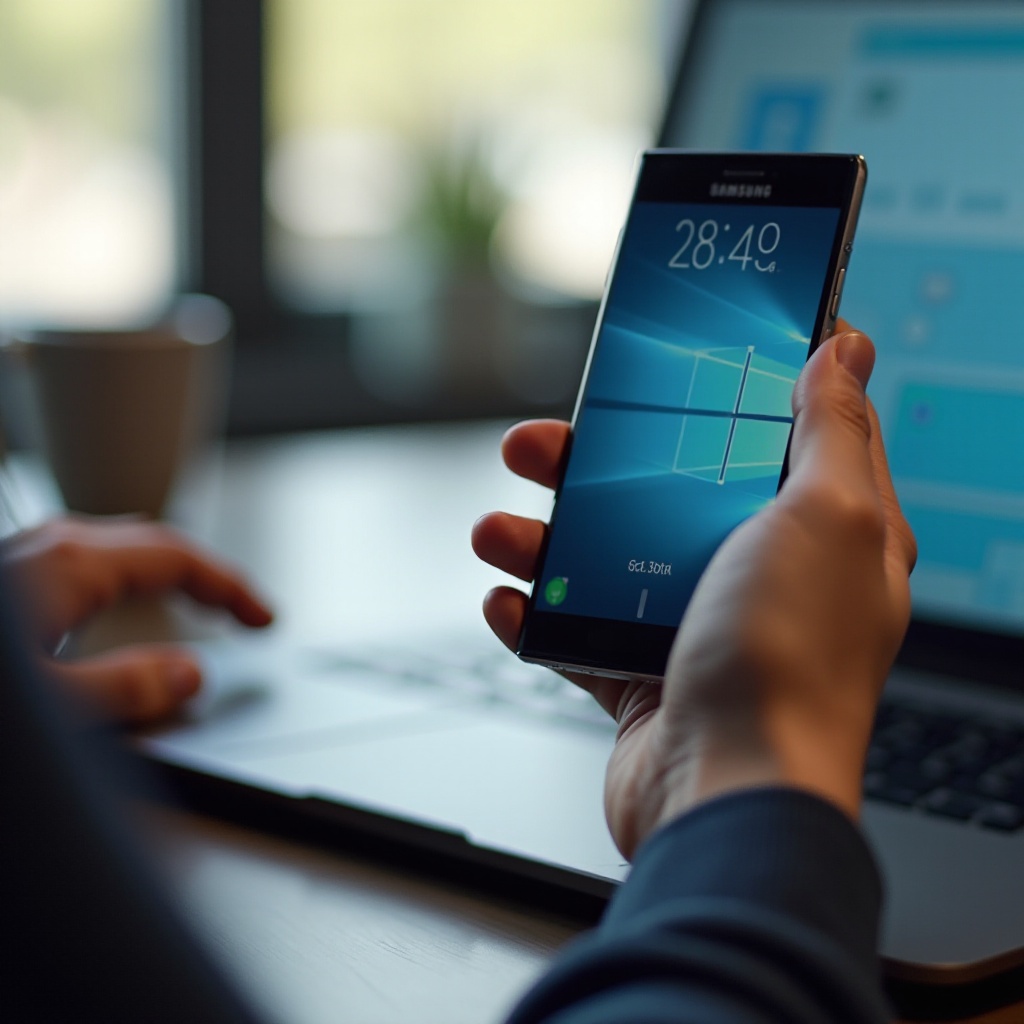
Moving beyond basic screenshot techniques, the Samsung S25 provides advanced features that cater to diverse user needs.
Scrolling Screenshot Capability
When you need to capture everything on a webpage or chat thread, use scrolling screenshots:
- Begin a screenshot using any method above.
- Select ‘Scroll Capture’ as it appears on-screen.
- The device will scroll, capturing and composing one continuous image.
This feature is especially beneficial for comprehensive information collection on lengthy pages.
Smart Select and Edge Panel Tools
Samsung’s Edge Panel includes the versatile Smart Select feature:
- Access the panel by swiping from the screen’s right edge.
- Use ‘Smart Select’ to capture rectified, oval-shaped, or even animated segments.
Smart Select allows precision captures, useful for obtaining particular items on webpages or apps.
Customizing and Sharing Your Screenshots
After capturing screenshots, it is crucial to know how to edit and share them effectively.
Built-in Editing Tools
Samsung S25 provides a robust set of editing tools directly on the screenshots:
- Open a screenshot preview immediately after capturing.
- Utilize tools to crop, annotate with text, draw, and apply various filters.
With effective editing, your screenshots will convey the intended message more accurately.
Direct Sharing Options
Effortless sharing of your screenshots is a hallmark of Samsung S25’s design:
- Tap ‘Share’ from the screenshot preview.
- Opt from messaging apps, email, or social media platforms.
This sharing capability ensures your content reaches its audience instantly and efficiently.
Troubleshooting Common Screenshot Issues
Even with Samsung’s user-friendly layout, occasional problems may occur. Here’s how to handle them.
Common Problems and Solutions
Issues like non-responsive screenshots or unsaved captures may arise:
- Check storage availability; exhausted storage may impede saving.
- Restart your phone to resolve transient software hiccups.
These straightforward fixes often alleviate most screenshot-related inconveniences.
Ensuring Optimal Settings for Screenshots
Optimizing settings fortifies the screenshot experience:
- Keep your phone’s software updated.
- Verify settings for all screenshot methods to ensure activation.
Maintaining optimal settings drastically reduces screenshot technical difficulty.
Conclusion
Understanding how to harness screenshot features on the Samsung S25 optimizes your smartphone engagement, facilitating seamless information sharing and collaboration. Having reviewed these various methods, you’re prepared to capture anything with ease and precision.
Frequently Asked Questions
How can I take a screenshot without using buttons on my Samsung S25?
Use the Palm Swipe gesture or Bixby voice commands to capture screenshots without using physical buttons.
Why are my screenshots blurry, and how can I fix it?
Ensure your screen resolution is set high and clean your screen. Regular software updates also help maintain clarity.
How do I capture a long webpage in one screenshot on the Samsung S25?
Utilize the scrolling screenshot feature by initiating a capture and selecting ‘Scroll Capture’ to screenshot and stitch lengthy pages.