Introduction
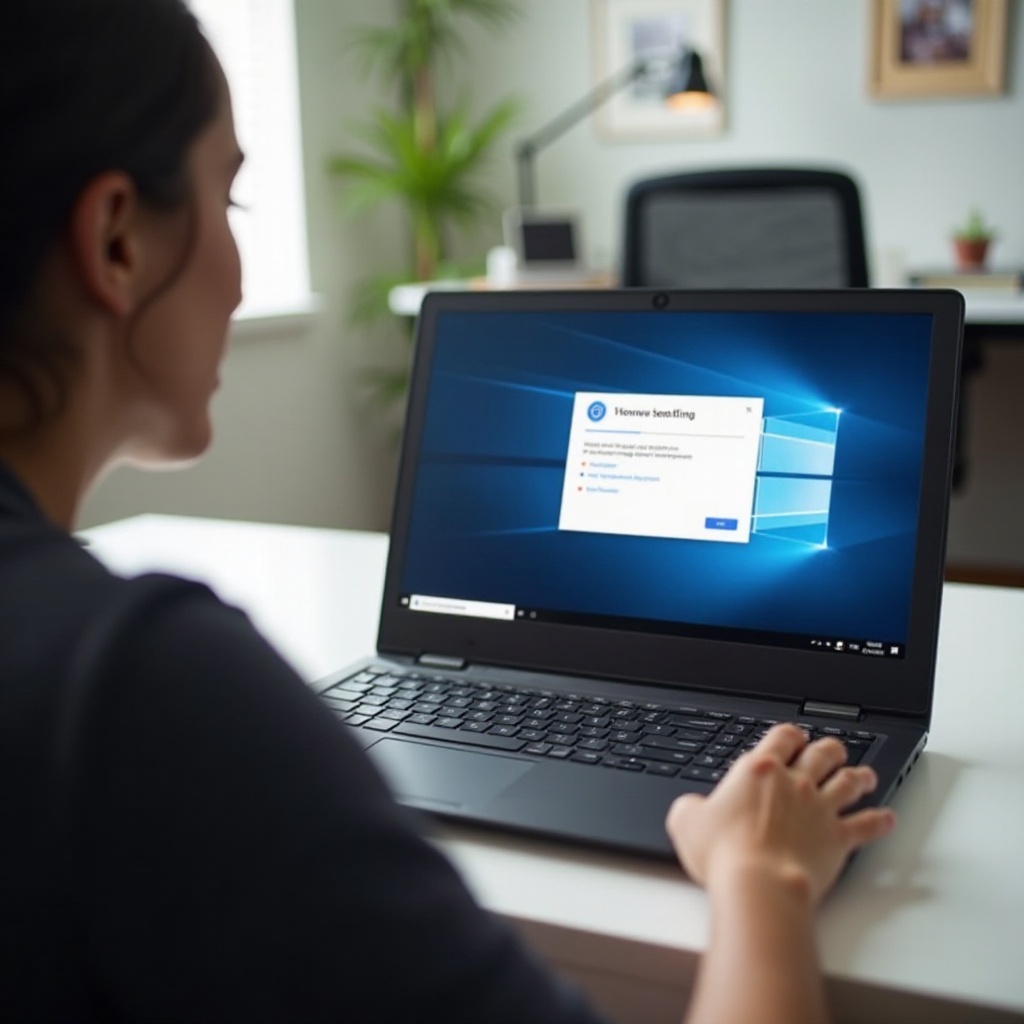
Experiencing problems with your Xbox 360’s HDMI port can quickly turn a fun gaming session into a frustrating ordeal. This guide aims to help you resolve these issues by providing detailed troubleshooting steps and preventive measures. By understanding the importance of HDMI connectivity and recognizing the symptoms of port malfunction, you’ll be well-equipped to tackle these challenges head-on.
Understanding the Importance of HDMI Connectivity
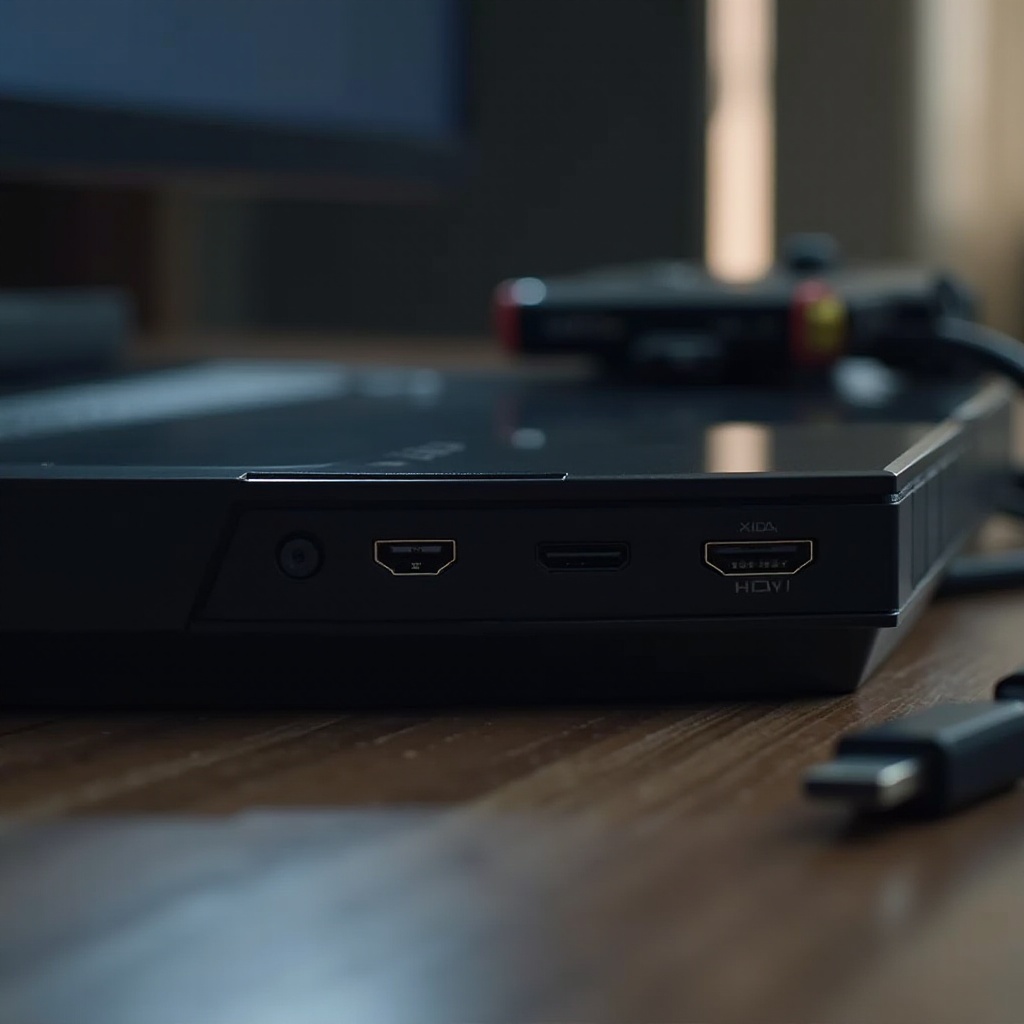
The HDMI port serves as the critical link between your Xbox 360 and your television, delivering high-definition video and audio signals essential for an optimal gaming experience. When this connection fails, you’re left with subpar graphics and sound, or worse — no connection at all. Understanding how crucial the HDMI connection is encourages a proactive approach to resolving any issues that may arise.
Recognizing the vital role of HDMI connectivity informs your strategy for addressing port-related problems. With this knowledge, we can now explore the common symptoms that signal HDMI port malfunctions.
Common Symptoms of HDMI Port Malfunctions
Identifying key symptoms is the first step in diagnosing HDMI port problems. Gamers commonly experience issues such as:
- No video output despite the console being powered on.
- Intermittent or flickering video signals.
- Distorted or poor-quality video output.
- Loss of audio when video is present.
By recognizing these signs, you can focus on specific solutions tailored to each issue. With these symptoms in mind, let’s move on to initial troubleshooting steps that can often resolve basic port issues.
Preliminary Troubleshooting Steps
Begin addressing HDMI port issues with these essential troubleshooting steps:
-
Check HDMI Cable Integrity: Inspect your HDMI cable for any signs of damage or wear. Replace it if necessary to rule out a faulty cable.
-
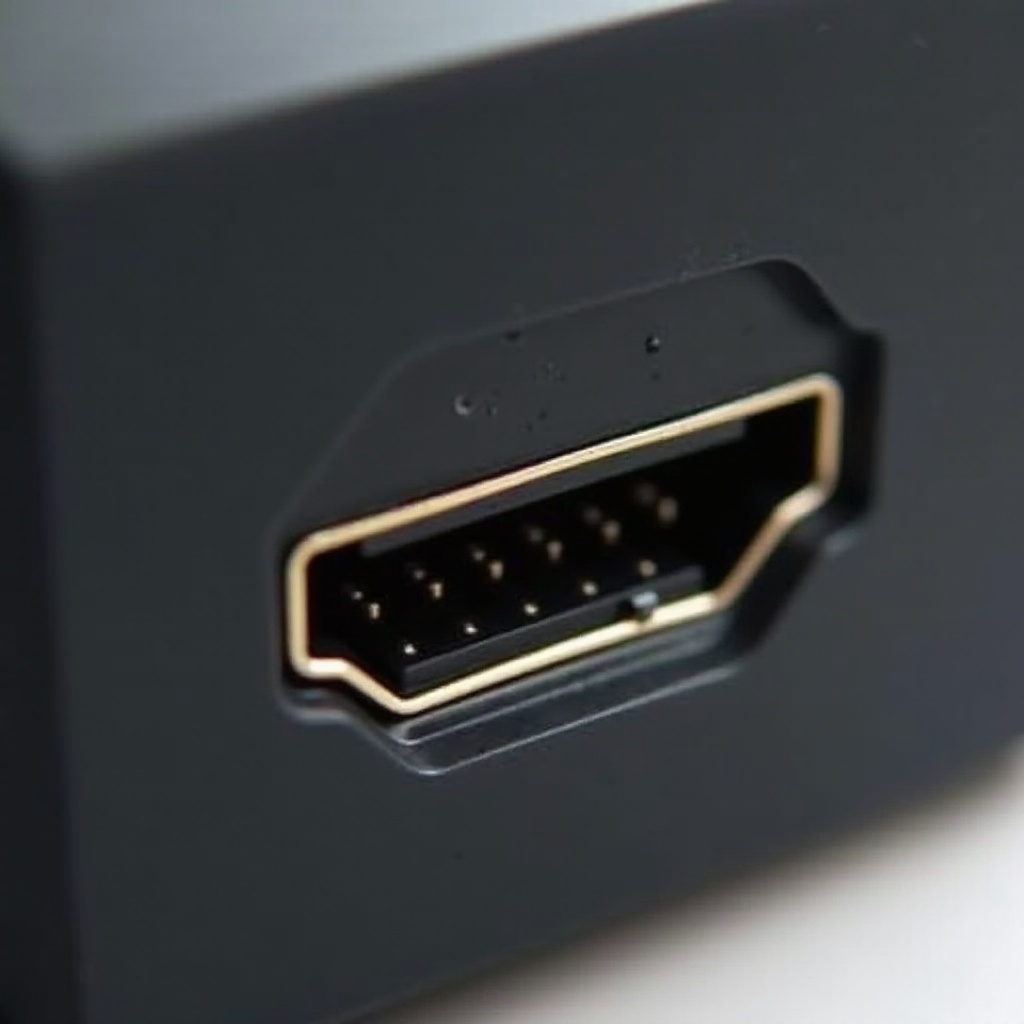
Testing with Alternative HDMI Ports: Connect your Xbox 360 to a different HDMI port on the TV to determine if the issue lies with the port itself.
-
Inspect Console and TV Settings: Ensure that the correct input settings are selected on both the Xbox and the TV to avoid simple configuration errors.
These steps often resolve basic connectivity problems, offering a quick fix to many common issues. However, if the problem persists, more advanced methods may be required. Let’s explore these in the next section.
Advanced Troubleshooting Methods
If basic troubleshooting doesn’t resolve the issue, consider these advanced techniques:
-
Resetting Display Settings: Power down your console, remove any discs, then turn it on by holding both the power and ‘Y’ buttons. This process resets the display settings to default.
-
Software Updates and Patches: Make sure your Xbox 360 is updated with the latest software. Navigate to system settings to download any available updates that could address HDMI issues.
-
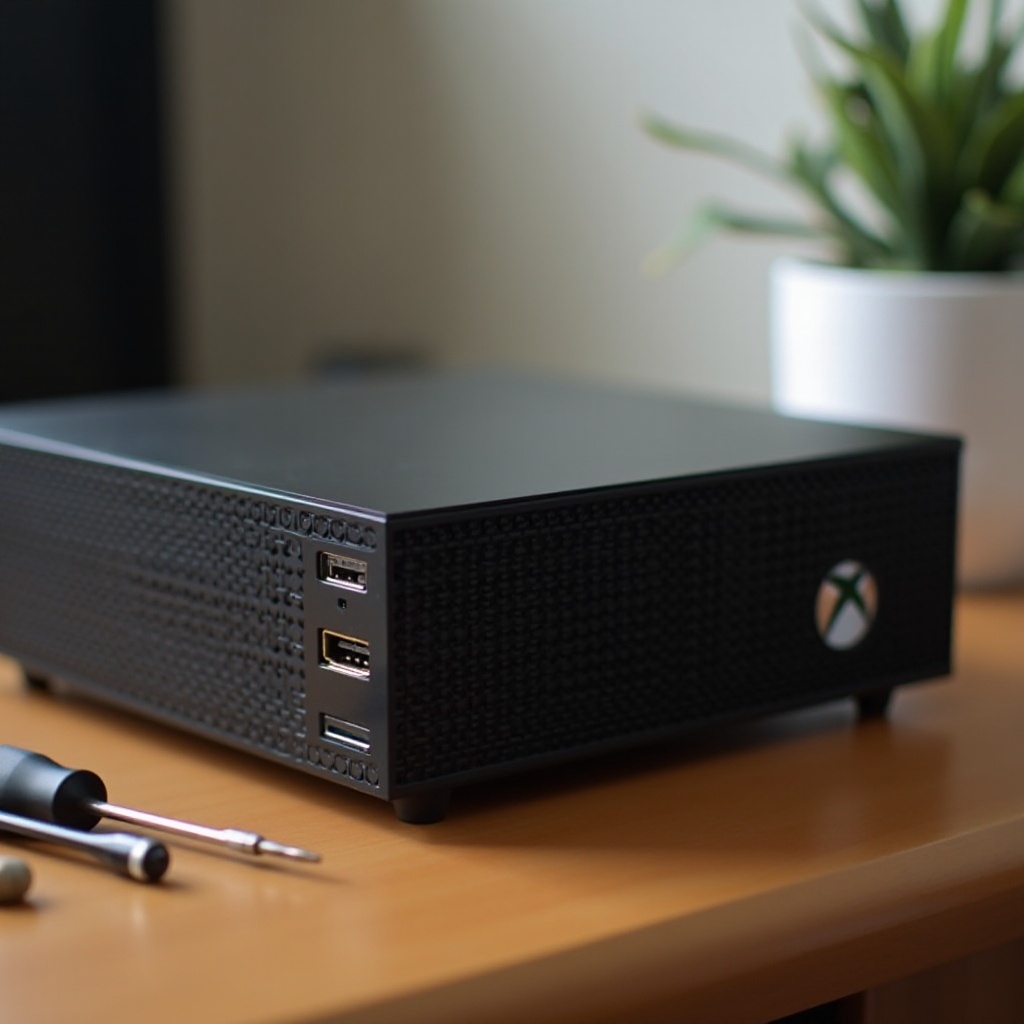
DIY Hardware Fixes: If you’re comfortable, open the console to inspect the HDMI port for looseness or physical damage. For those less tech-savvy, professional repair might be the safer choice.
These methods address more persistent problems that aren’t solved by initial fixes. Nevertheless, practicing preventive care can avert these issues from arising in the first place. Let’s discuss how to maintain your HDMI ports.
Preventive Measures to Avoid Future Issues
Maintaining optimal performance of your Xbox 360 involves proper care of its HDMI ports:
-
Proper Maintenance of HDMI Ports: Regularly clean your HDMI ports using compressed air to avoid dust and debris build-up that can impede connectivity.
-
Regular Handling and Cleaning Tips: Handle cables with care, avoiding tight bends, and disconnect them by holding the plug to prevent cable damage.
By adhering to these preventive tips, you extend the lifespan of both your HDMI ports and cables, minimizing disruptions to your gaming experience.
Conclusion
By following these comprehensive steps to troubleshoot and maintain your Xbox 360 HDMI port, you can ensure uninterrupted, high-quality gaming. From identifying symptoms to implementing both basic and advanced solutions, this guide equips you with the skills necessary to address HDMI connectivity issues effectively. Should problems persist even after trying all the outlined steps, seeking professional assistance is a wise choice. Enjoy your seamless gaming experience!
Frequently Asked Questions
Why is my Xbox 360 not displaying via HDMI?
This issue might stem from a faulty HDMI cable, incorrect TV settings, or a damaged HDMI port. Start by checking cable integrity and trying different input ports.
Can a faulty HDMI port be professionally repaired?
Yes, a professional technician can diagnose and repair or replace a faulty HDMI port, particularly if it’s a hardware-related issue.
What are alternative connection methods for the Xbox 360?
If HDMI issues persist, consider using component cables or a VGA cable as alternative connection methods to link your console to the TV.