When your Xbox shuts down unexpectedly, it disrupts your gaming flow and leaves you wondering about the cause. From hardware malfunctions to software issues, various factors could be at play. Identifying the exact problem is crucial to applying the right fix and getting you back in the game. This guide explores common reasons your Xbox might power down on its own and provides practical solutions and preventive measures to ensure a stable gaming experience.
Introduction
Sudden shutdowns of your Xbox can be annoying and confusing. Understanding the underlying reasons can help you address and prevent the issue from recurring. In this article, we’ll highlight key reasons ranging from hardware problems like overheating and faulty power supplies to software glitches and user settings mishaps. We’ll walk you through each aspect and offer troubleshooting steps and preventive tips to restore your gaming experience.
Common Hardware Issues
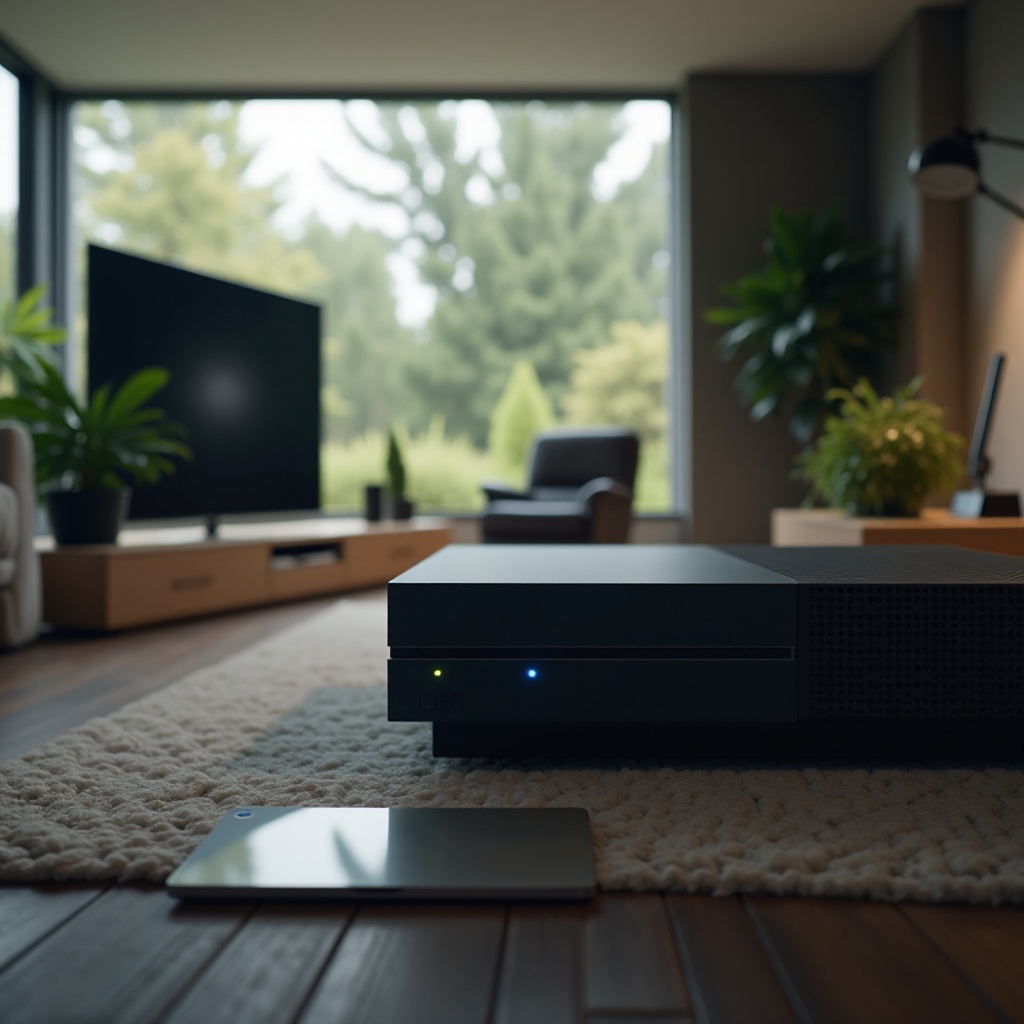
Hardware problems are often the most frequent cause when an Xbox powers off unexpectedly. Keep an eye on your console’s physical components to maintain its functionality.
Overheating Problems
Managing heat effectively is essential for any gaming setup. Your Xbox might be showing signs of overheating if it’s used for long periods or lacks proper ventilation.
- Check Ventilation: Ensure the Xbox is situated in a well-ventilated area, providing ample room for air circulation. Avoid storing it in enclosed spaces that trap heat.
- Clean the Console: Dust buildup can inhibit airflow, leading to overheating. Regularly dust the air vents using compressed air to remove obstructions.
- Use Cooling Accessories: Consider investing in external cooling fans to enhance airflow and keep the console at optimal temperatures.
Once you’ve tackled potential overheating issues, it’s time to examine if power supply problems are contributing to the shutdowns.
Power Supply Failures
A reliable power supply is crucial for uninterrupted gaming. Issues with the power components can cause your Xbox to turn off unexpectedly.
- Inspect the Power Brick and Cables: Check the functionality of the power brick and ensure all connections are secure. Replace damaged cables immediately.
- Examine the Power Outlet: Ensure the outlet provides consistent power. If possible, test it by plugging in other devices or try a different outlet to rule out electrical issues.
With hardware components verified, turn your attention to software-related factors that might be affecting your Xbox’s performance.
Software-Related Causes
Software issues can cause system disruptions leading to unexpected shutdowns. Regular updates and maintenance help in reducing these occurrences.
System Glitches and Updates
Bugs in the system software or outdated versions can sometimes lead to power-offs.
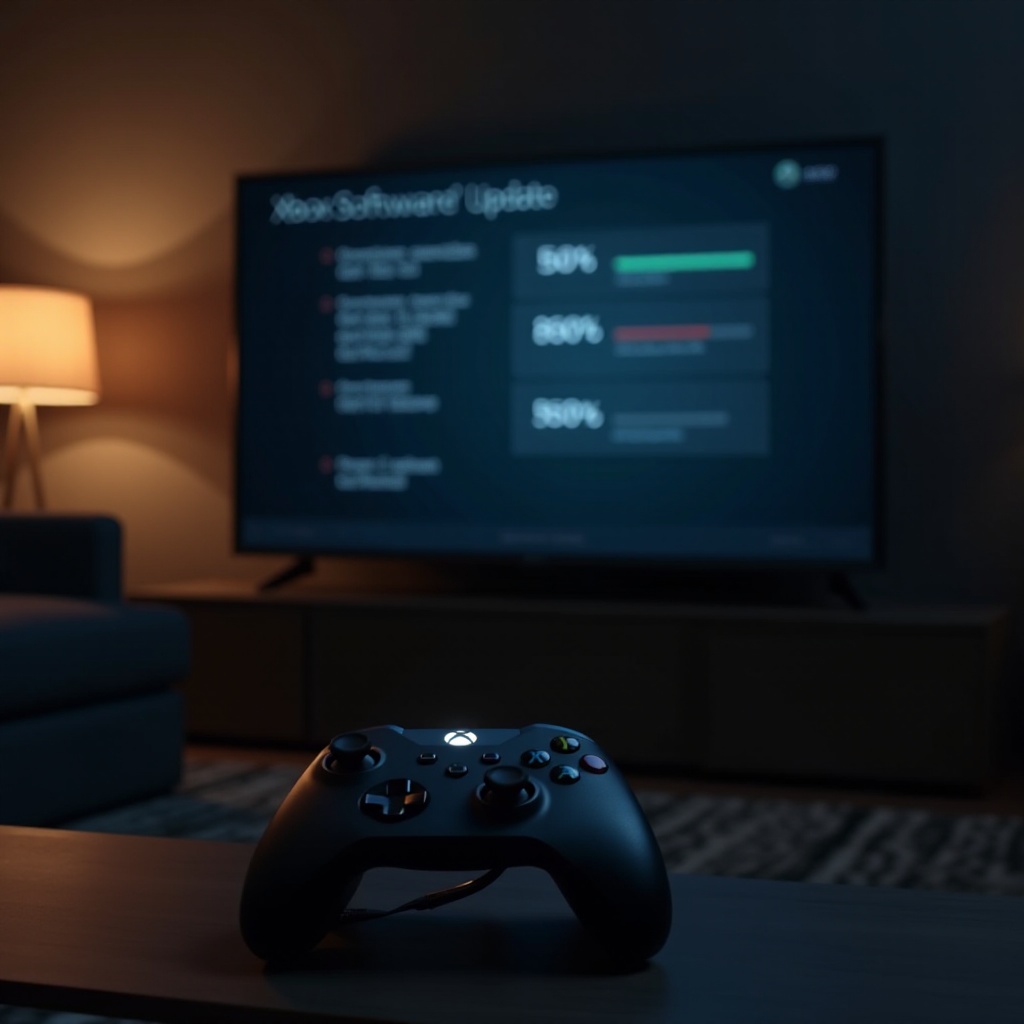
- Install Latest Updates: Regularly update your Xbox software to fix bugs and enhance performance. Enable automatic updates to ensure you’re always running the latest version.
- Perform a Hard Reset: Holding down the power button for ten seconds forces a hard reset, which can resolve many software-related issues.
Incompatible Game or App Issues
Certain games or apps might cause system instability.
- Test Different Games: If shutdowns only occur with specific games, uninstall and reinstall them to resolve corruption issues.
- Clear Console Cache: Power off the console, unplug it from the power source for a few minutes, and then plug it back in. This can often resolve minor app-related issues and improve performance.
After addressing software concerns, reviewing user settings and energy preferences may also reveal causes for the shutdowns.
User Settings and Energy Preferences
Your Xbox settings can influence its operation, potentially leading to unintentional shutdowns.
Auto-Shutdown and Energy Saving Settings
Ensure your console settings aren’t causing unnecessary power-offs.
- Review Auto-Shutdown Settings: Go to Settings > Power & Startup and adjust the options to prevent the console from shutting off when inactive.
- Select Appropriate Power Mode: Switch between ‘Instant-On’ and ‘Energy-Saving’ modes to see which one fits your gaming habits best.
With these changes in place, let’s dive into a comprehensive troubleshooting guide to address remaining issues that may cause your Xbox to turn off unexpectedly.
Step-by-Step Troubleshooting Guide
Let’s walk through detailed troubleshooting steps to identify and address the root cause of the shutdowns.
Inspecting External Factors
Evaluate your gaming environment and setup.
- Monitor Room Temperature: Ensure the room is adequately cooled to prevent overheating, especially during extended gaming sessions.
- Assess Network Stability: A stable internet connection is vital, especially for online gaming, as disruptions may cause shutdowns.
Cleaning and Maintenance Tips
Regular maintenance ensures your Xbox remains in optimal condition.
- Establish a Cleaning Schedule: Regularly clean your console and accessories to avoid dust buildup obstructing fans and vents.
- Consider Protective Covers: While ensuring ventilation, covers help keep dust away, maintaining efficiency.
Power Supply and Cable Checks
Check all power connections to rule out any defects.
- Use Different Power Cables: Test with other cables to see if faulty wiring is the cause.
- Tighten Loose Connections: Secure all connections to prevent power interruptions and maintain stability.
Addressing these areas often resolves unexpected shutdowns. Next, consider preventive measures to maintain a stable gaming environment.
Preventive Measures for Future Problems
Adopting preventive measures helps ensure your Xbox’s longevity and reliability.
Optimal Console Placement
Positioning your console thoughtfully can prevent numerous issues.
- Strategic Setup: Place your Xbox in a location that allows adequate airflow and avoids direct exposure to dust.
- Avoid Heat Sources: Keep the console away from direct sunlight and other heat-emitting devices to ensure stable performance.
Regular Software Updates
Maintain your console’s software to prevent future malfunctions.
- Enable Automatic Updates: Keeping software updated with cutting-edge patches ensures protection against known glitches.
- Monitor Available Storage: Sufficient storage space is crucial for updates and installation, so regularly check and manage disk space.
These preventive strategies will help maintain seamless, uninterrupted gaming sessions, minimizing the likelihood of sudden shutdowns.
Conclusion
Understanding why an Xbox may power down unexpectedly involves exploring both hardware and software factors. By following the provided troubleshooting steps and incorporating preventive measures, you can effectively address the issue and enhance your gaming experience. Regular maintenance and updates pave the way for stable performance and a longer lifespan for your Xbox.
Frequently Asked Questions
How can I tell if my Xbox is overheating?
Physical symptoms like loud fan noises, warm surfaces, and in-game warnings can indicate overheating.
Can a faulty game cause my Xbox to shut down?
Yes, corrupted game files or incompatible software can cause system instability leading to shutdowns.
What should I do if my Xbox keeps turning off after troubleshooting?
If issues persist, consider contacting Xbox Support or consult a professional technician for diagnostics.