
Introduction
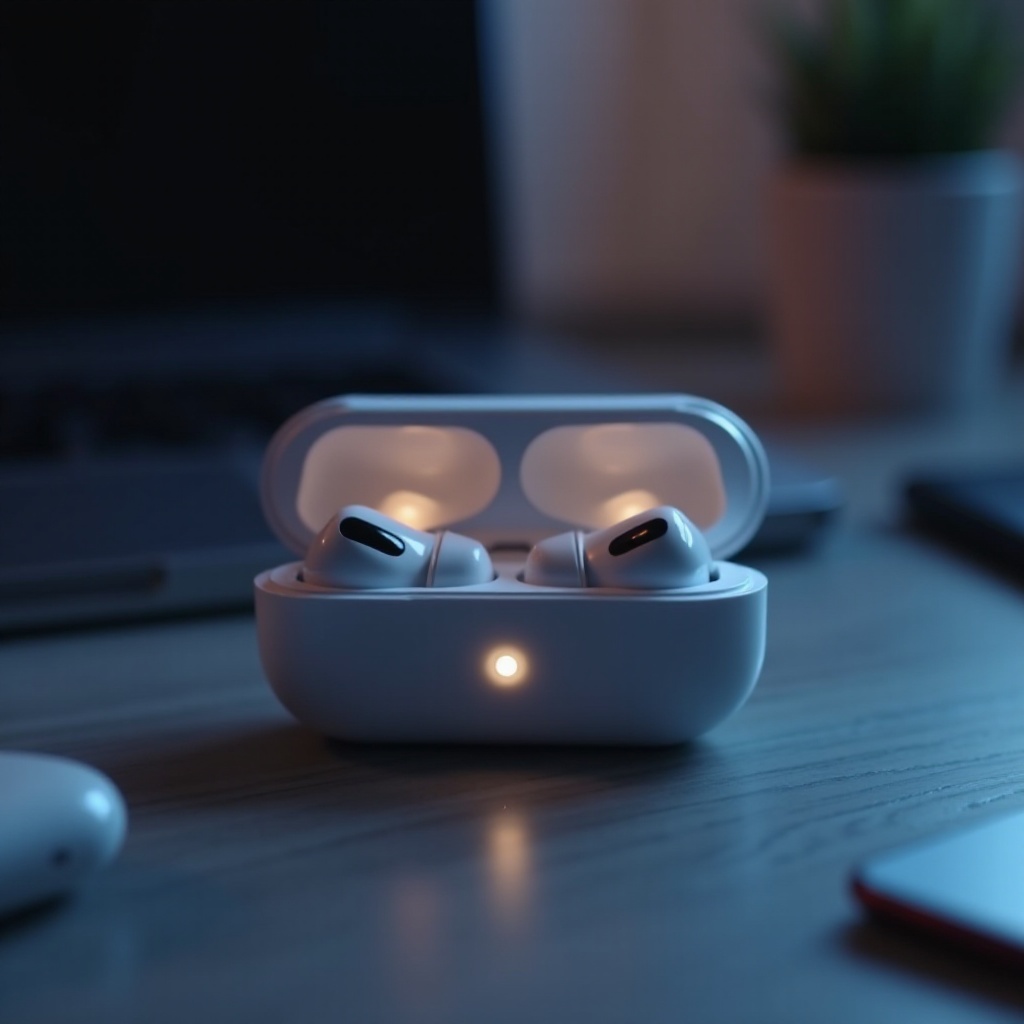
The AirPods Pro, known for their outstanding audio quality and design, have become a staple for wireless headphone enthusiasts. Key to their functionality are the LED light indicators, which communicate essential information about charging and connectivity status. Understanding these indicators ensures optimal use and swift resolution of any issues that may arise. This guide explores the meaning behind each light signal and offers solutions to enhance your AirPods Pro experience.
Grasping the meanings of these indicators can prevent confusion and offer clarity when troubleshooting potential device issues. From pairing difficulties to battery alerts, each light tells a story that users should be able to interpret for effective device maintenance.
Overview of AirPods Pro Light Indicators
To truly benefit from your AirPods Pro, understanding the purpose of light signals is crucial. These LEDs are your device’s way of communicating key status updates at a glance. Grasping their significance offers peace of mind and smooth functionality.
Misinterpretations can lead to unnecessary frustration or disruptions, so a solid comprehension of these indicators can enrich the overall user experience and reduce downtime.
Purpose of Light Signals
Through LED indicators, AirPods Pro communicate vital information about battery life, pairing status, and operational errors. This straightforward form of communication helps users quickly identify the device’s status.
Importance of Knowing Indicator Meanings
By understanding what each light signal represents, users enhance their confidence and optimize their AirPods Pro usage. This insight allows users to troubleshoot issues efficiently without delay.
Detailed Explanation of Light Colors
With different light colors come different meanings, each addressing unique aspects of device performance. Knowing the distinctions ensures users can address problems proactively and optimize their listening experience.
Green Light: Fully Charged
The green light on your AirPods Pro case signifies that the earbuds or case are fully charged and ready for use. This indicator allows users to enjoy their listening sessions without concern for battery life.
Amber Light: Charging and Issues
An amber light reflects active charging, hinting that the battery isn’t fully charged yet. It advises users to leave the device plugged in until a green light is visible.
Flashing White Light: Pairing Mode
Flashing white indicates the AirPods Pro are in pairing mode, ready to connect with a Bluetooth-enabled device. If pairing fails, check your device’s Bluetooth settings and ensure proximity.
Moving from recognizing light colors to troubleshooting helps users maintain device functionality by addressing typical issues that might interrupt their AirPods Pro usage.
Troubleshooting Common Light Signal Issues
Despite their ease of use, AirPods Pro users might occasionally face challenges with LED signals indicating connectivity or technical issues. Identifying these problems and resolving them promptly is key to maintaining optimal device performance.
Persistent Amber Light Solutions
A persistent amber light may imply incomplete charging or battery malfunctions. Verify charging equipment efficacy or reset the AirPods Pro to remedy stubborn errors.
No Light Issues and Fixes
Absence of light can suggest power issues or connection problems. Ensure the case is charged, or try resetting the device to restore function.
Flashing Amber Light: Addressing Connectivity Problems
If confronted by a flashing amber light, connectivity issues may be at play. Re-initialize your AirPods Pro’s setup and confirm Bluetooth availability on the source device.
Tips for Maintaining AirPods Pro Performance
In maintaining your AirPods Pro, certain practices can facilitate prolonged service life and uninterrupted high-quality performance.
Charging Best Practices
- Utilize authentic Apple chargers for best performance.
- Disconnect once fully charged to prevent overcharging.
- Regularly update software for improved battery management.
Regular Cleaning and Maintenance
- Clean AirPods Pro gently with a soft, dry cloth to avoid damage.
- Remove dirt using a dry cotton swab for the case and earbuds.
- Periodically update firmware for better functionality and performance.
Following these advice points ensures your AirPods Pro remain an immaculate companion to your daily activities, meeting your audio needs competently as you proceed through bridged usage and maintenance.
Conclusion
Recognizing the implications of AirPods Pro light indicators is fundamental to adept device management and a refined user experience. By decoding these signals and leveraging practical solutions, users maintain optimal functionality and enjoy usage without interruption.
Through maintenance tips and troubleshooting suggestions, users ensure their AirPods Pro remain a dependable accessory, serving their diverse audio needs seamlessly.
Frequently Asked Questions
Why does my AirPods Pro case show a blinking white light?
A blinking white light means your AirPods Pro are in pairing mode, ready to connect. Ensure your device’s Bluetooth is enabled and within range.
How can I fix the persistent amber light issue on my AirPods Pro?
Persistent amber light may indicate charging or battery issues. Check charger compatibility, reset the AirPods, or update the firmware to fix it.
What does the absence of lights on my AirPods Pro mean?
No light suggests power or connection issues. Charge the case and try resetting the device if it remains unresponsive.