Introduction
Efficiently managing alerts on your iPhone is crucial for a streamlined experience. Alerts keep you informed about important updates and activities, helping you stay organized and responsive without feeling overwhelmed. Whether you’re an iPhone expert or new user, mastering alert management can significantly enhance your digital interaction. This comprehensive guide provides you with steps to find, customize, and troubleshoot alerts effectively.
Understanding iPhone Alerts
Before delving into alert management, it’s essential to comprehend what alerts on an iPhone entail. Alerts are designed to catch your immediate attention, categorized into banners, sounds, and badges. They differ from regular notifications, as alerts often require an immediate response and are typically more time-sensitive. For instance, phone calls or messages trigger alerts demanding your prompt action.
Recognizing these distinctions will enable you to handle alerts more precisely, making informed decisions on what needs your attention and when.
Accessing and Managing Alerts on Your iPhone
Armed with basic understanding, it’s time to explore accessing and managing these alerts. To find alerts on your iPhone seamlessly, follow these steps:
- Quick Steps to View Alerts:
- Swipe down from the top-left corner of your screen to access the Notification Center.
-
For newer models, swipe up from the bottom or swipe down from the top-right corner (for Face ID devices) to open the Control Center.
-
Utilizing the Control Center:
-
The Control Center helps you quickly modify alert settings, providing control over features like Do Not Disturb and Focus modes.
-
Accessing Notification Center on Different Models:
- For newer iPhone versions, swipe down from the top-left corner.
- Models with Touch ID require swiping down from the screen’s top section.
With these steps, you’re ready to customize alert settings, facilitating easier management tailored to your needs.
Personalizing Alert Settings
Customizing alert settings on your iPhone allows you to optimize notifications for your specific requirements. Here’s how you can effectively adjust alert settings:
- Customizing Alerts for Individual Apps:
- Navigate to Settings > Notifications.
- Select the desired app for customization.
-
Choose alert format: banners, sounds, or badges.
-
Adjusting Sound, Badge, and Display Settings:
- In the Notifications settings, modify sound alerts and badge symbols.
-
Decide if alerts should appear as banners or require immediate interaction.
-
Utilizing Focus and Do Not Disturb Modes:
- Access the Control Center.
- Leverage Focus for alert optimization during work hours or personal periods.
- Toggle Do Not Disturb to mute alerts temporarily.
Customizing these settings ensures vital alerts reach you without intrusion, enhancing both personal and professional engagements.
Troubleshooting Common Alert Issues
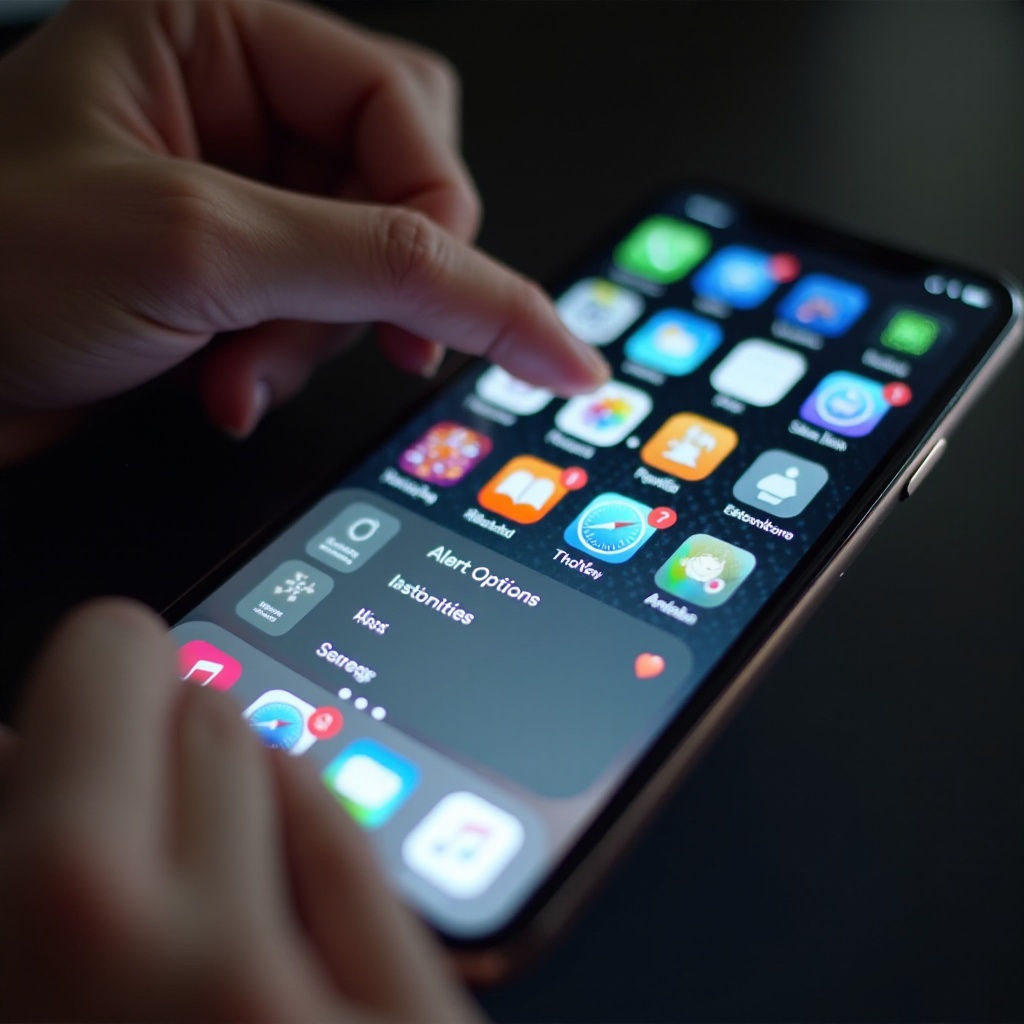
At times, alerts may fail to function correctly. Here’s how to troubleshoot these inconveniences:
- Why Aren’t Alerts Appearing?
- Confirm if Do Not Disturb or Focus mode is activated inadvertently.
-
Check if Notification settings are correctly enabled for the specific app.
-
Solutions for Persistent Alert Problems:
- Restart your iPhone to alleviate temporary issues.
- Ensure your iOS is updated to the latest version.
-
Consider resetting all settings if problems persist extensively.
-
Getting Support from Apple:
- Explore Apple Support online or seek assistance from an Apple Store for complex problems.
Solving alert issues helps maintain uninterrupted operations, providing a seamless iPhone experience.
Advanced Alert Management Techniques
Beyond basic management, implementing advanced techniques can further improve your iPhone efficiency:
- Automation Tools in iPhone Settings:
- Use shortcuts to automate alerts based on location or time preferences.
-
Establish automated alerts for daily routines like workout reminders or scheduled meetings.
-
Improving Productivity with Siri Suggestions:
- Activate Siri Suggestions for insightful alert recommendations.
- Siri can propose prioritized alerts during particular times or activities.
These advanced methods ensure you have a tailor-made alert system, promoting a more productive interaction with your digital world.
Conclusion
Effectively managing alerts on your iPhone leads to an optimized smartphone experience. Grasping the types of alerts and customizing settings to fit your lifestyle reinforces a productive and well-organized digital environment. Troubleshooting regular issues and applying sophisticated management strategies empower you to maximize your iPhone’s capabilities.
Frequently Asked Questions
How can I view alerts for specific apps on my iPhone?
You can view alerts for specific apps by going to Settings > Notifications, selecting the app, and adjusting its alert settings.
What should I do if my iPhone alerts are not appearing?
Ensure Do Not Disturb or Focus mode isn’t active, check notification settings for the app, and restart your iPhone to resolve this issue.
Is there a way to prevent alert overload on my iPhone?
Yes, utilize Focus mode to limit alerts during certain times, customize app alerts individually, and use Do Not Disturb to silence alerts when necessary.