Introduction
Adding a printer to your computer might seem challenging, but with the right instructions, it’s a simple task. This guide will walk you through connecting a printer to your computer, whether you’re using a USB or a wireless connection. We’ll cover both Windows and macOS systems, addressing common problems to ensure a successful setup. By the end of this guide, not only will your printer be up and running, but you’ll also have tips for maintaining it for the long haul.
Understanding Printer Options
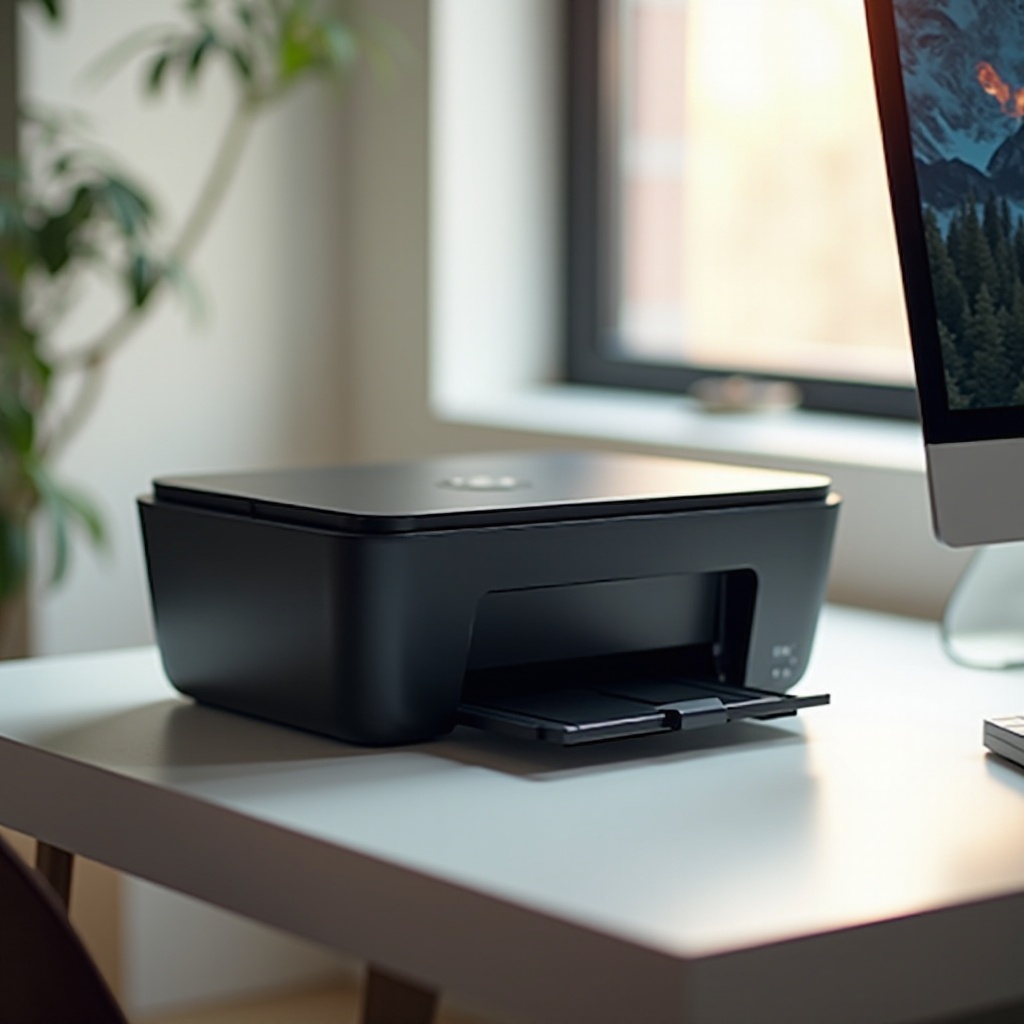
Printers come in various types, ranging from basic USB-connected devices to advanced wireless units that provide greater mobility. Having a clear understanding of your printer’s features can help customize the setup process to meet your needs. Modern printers commonly support both USB and wireless setups, catering to those who prioritize ease of use and convenience. The decision between these connection types can significantly impact the setup process on your computer.
Being informed about your printer model and its supported connection options is crucial as it sets the stage for a smooth installation on your preferred operating system. Let’s move on to setting up printers on Windows to get started.
Setting Up a Printer on Windows
Installing a printer on a Windows system involves specific steps, which vary depending on whether you are using a USB connection or a wireless method. Follow these detailed instructions to ensure a successful installation.
USB Printer Installation
- Connect the Printer: Attach your printer to your computer using the USB cable provided with your printer.
- Power On: Turn on the printer. Windows will often recognize new hardware and start the driver installation process automatically.
- Install Drivers: If the drivers do not install automatically, visit the printer manufacturer’s website to download and install the appropriate drivers.
- Print a Test Page: Once set up, print a test page to confirm your printer is functioning correctly.
Wireless Printer Setup
- Check Compatibility: Ensure your printer supports wireless networking, and verify your network is active.
- Access Printer Settings: Use your printer’s control panel to access the network settings.
- Connect to Wi-Fi: From the network list, select your network and enter the Wi-Fi password to connect.
- Install the Printer: In Windows, go to ‘Settings,’ select ‘Devices,’ then ‘Printers & Scanners,’ and click ‘Add a Printer.’ Choose your printer from the list.
- Test Connectivity: Print a test page to ensure the wireless installation is successful.
Understanding how to install on a Windows system will simplify the transition as we explore the setup on macOS.
Setting Up a Printer on macOS
For macOS users, the printer setup process shares similarities with Windows, though there are some variations. Whether you’re using a USB or wireless connection, the process remains straightforward.
USB Printer Configuration
- Connect and Power On: Attach your printer to the Mac via a USB cable and power on the device.
- Automatic Detection: Usually, macOS will detect the printer and automatically install the required drivers.
- Manual Driver Installation: If not automatically detected, download the necessary drivers from the printer manufacturer’s website.
- Print Test: Go to ‘System Preferences,’ select ‘Printers & Scanners,’ and print a test page to verify the setup.
Wireless Printer Configuration
- Verify Printer Capability: Confirm that your printer supports wireless connectivity.
- Connect to Network: Access the printer’s settings to connect it to your Wi-Fi network.
- System Preferences: On your Mac, open ‘System Preferences,’ navigate to ‘Printers & Scanners,’ and click the ‘+’ sign to add your printer.
- Print Test Page: Ensure the setup’s success by printing a test page.
Seamlessly moving from printer configuration to potential hurdles ensures a well-rounded understanding of printer setups on both systems.
Troubleshooting Common Printer Issues
Even after a successful setup, you might encounter issues. Here’s how to efficiently troubleshoot common printer problems:
- Driver Issues: Outdated or incorrect drivers can hamper printer functionality. Ensure your drivers are the latest from the manufacturer’s website.
- Connection Problems: For wireless setups, verify your printer is on the correct network. Re-enter Wi-Fi credentials if necessary.
- Print Queue Stuck: A jammed print queue might block printing. Access ‘Printers & Scanners’ on macOS or ‘Devices’ on Windows to clear it.
- Paper Jams: Regular checks for paper jams and properly loaded paper can prevent blockages.
- Check Error Messages: Address any error messages as per your printer’s manual instructions.
Transitioning from technical difficulties to maintaining your printer encompasses a holistic approach to optimizing functionality.
Tips for Maintaining Your Printer
To extend your printer’s lifespan and ensure steady performance, follow these maintenance tips:
- Regular Cleaning: Periodically clean your printer to prevent dust buildup that could affect its performance.
- Use Quality Ink: Opt for high-quality ink or toner to avoid clogs and ensure sharp printing.
- Firmware Updates: Regularly check for firmware updates on the manufacturer’s website to address bugs and improve functionality.
Conclusion
Setting up a printer doesn’t need to be difficult. With this guide, you can easily connect your device via USB or wirelessly on both Windows and macOS. The troubleshooting tips provide quick fixes for possible issues, while maintenance advice will ensure your printer operates smoothly over time. Follow these steps and enjoy effortless printing with minimal interference.
Frequently Asked Questions
Why can’t my computer detect my printer?
Your computer might not detect your printer due to outdated drivers, connection issues, or incorrect settings. Ensure your drivers are updated, and verify the cable or Wi-Fi connection.
How do I update my printer drivers?
Visit the printer manufacturer’s website, find the ‘Support’ section, and download the latest drivers for your printer model. Follow the given installation instructions.
Can I connect multiple computers to one printer?
Yes, networked printers can connect to multiple devices. Ensure your printer supports this connection type, then follow the provided guide to connect additional computers.