Introduction
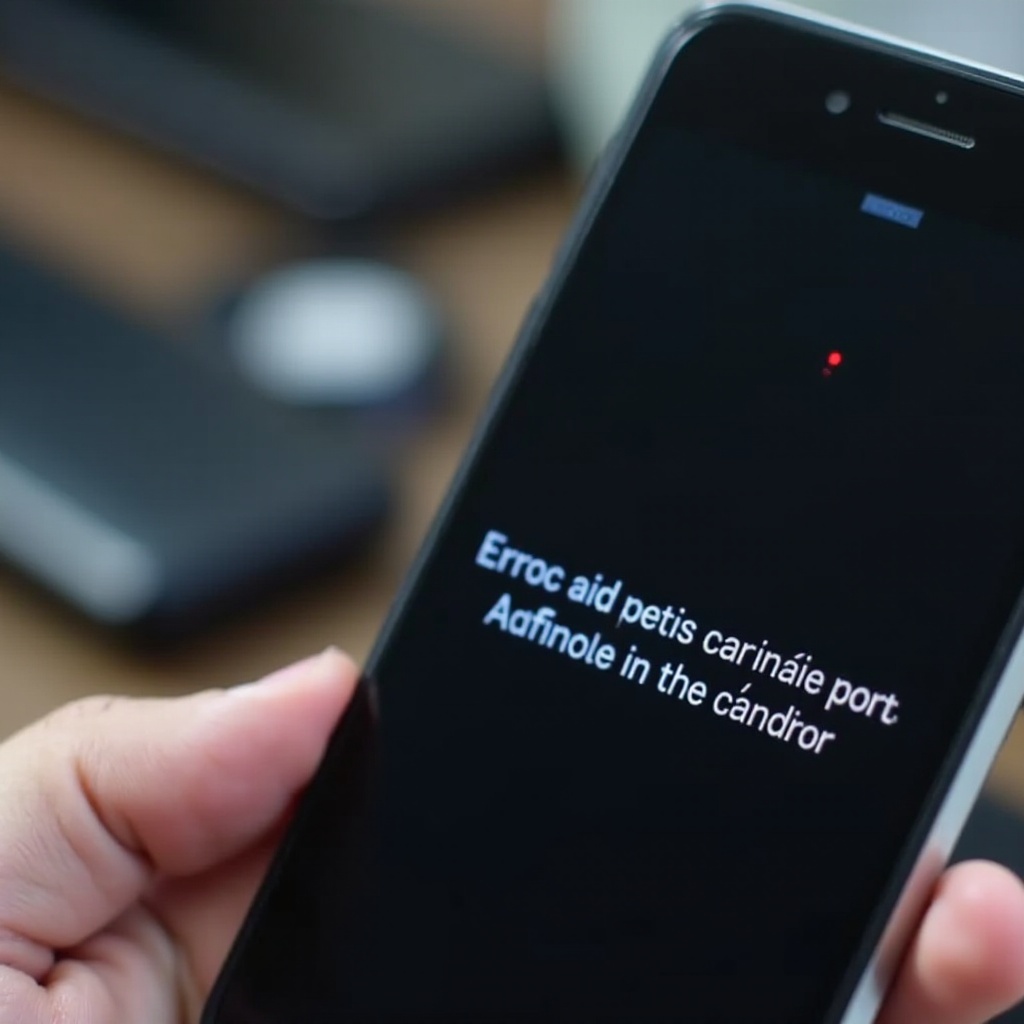
Encountering a ‘camera failed’ error on your phone can be extremely frustrating, especially when you want to capture a rare or significant moment. This error could stem from various factors, such as minor software glitches or more serious hardware issues. This comprehensive guide is designed to help you troubleshoot these common issues, enabling you to diagnose the problem and potentially fix it yourself. Through both simple and advanced strategies, we’ll delve into why your phone might display a ‘camera failed’ message and how you can address it.
Common Causes of Camera Failed Errors
Understanding the potential reasons for a ‘camera failed’ error is the first step in resolving the problem. Here are some frequent causes:
- Software Conflicts: Background apps and services could be disrupting the camera’s functionality.
- Outdated Software: If your operating system is not updated, this can lead to compatibility mistakes impacting the camera’s function.
- Insufficient Memory: Lack of storage space or RAM can cause phone malfunctions, including camera issues.
- Corrupt Cache or App Data: A buildup of cache or corrupted app data might block the camera app’s normal function.
Each of these causes has tailored solutions. Let’s start with fundamental troubleshooting steps to potentially resolve this error.
Basic Troubleshooting Steps
Beginning with fundamental troubleshooting can be helpful in fixing the ‘camera failed’ issue. Here are some easy steps you can perform:
Restarting Your Smartphone
Restarting your phone can often resolve minor glitches. Follow these steps:
- Press and hold the power button.
- Choose ‘Restart’ or ‘Reboot’ from the menu.
- Wait for the phone to reboot and then check the camera.
Checking App Permissions
Ensure the app has all necessary permissions to function correctly:
- Go to Settings > Apps.
- Locate and select the camera app.
- Tap ‘Permissions’ and make sure all permissions are enabled.
Clearing Cache and App Data
Clearing the camera app’s cache or data might resolve temporary issues:
- Navigate to Settings > Apps.
- Find and tap the camera app.
- Select ‘Storage’ and choose ‘Clear Cache’ and then ‘Clear Data.
Once you’ve tried these basic steps, yet the issue persists, it’s time for more advanced solutions.
Advanced Solutions for Persistent Issues
When basic troubleshooting fails to resolve the issue, consider these advanced technical methods.
Updating Your Operating System
Sometimes an outdated OS is to blame:
- Go to Settings > Software Update.
- Tap ‘Download and Install’ to update your OS.
- Once installed, check your camera again.
Booting in Safe Mode
Safe Mode can help in identifying apps that might be causing the issue:
- Press and hold the power button.
- Tap and hold ‘Power Off’ until ‘Safe Mode’ appears.
- Select ‘Safe Mode’ and check if your camera works properly.
Performing a Factory Reset
As a measure of last resort, resetting your phone to factory settings can be considered:
- Backup essential data.
- Go to Settings > General Management.
- Choose ‘Reset’ > ‘Factory Data Reset’ and follow the instructions.
These solutions help tackle both software and potential hardware issues, leaving your camera functional once more.
Differentiating Between Hardware and Software Issues
Being able to distinguish if the failure is hardware or software-related is crucial for assessing the correct repair path.
Identifying Hardware Malfunctions
Hardware issues may involve defective camera sensors or lenses. Signs include:
- Physical damage near the camera
- The camera does not work even in Safe Mode
- Persistent error messages, despite resets
Hardware issues often call for professional help for repair or replacement.
Understanding Software Glitches
Software problems usually manifest as:
- Inconsistent app behavior
- Camera works in Safe Mode but not normally
- Resolving through software updates or factory resets
Software issues are often repairable via updates or resetting your phone, while hardware problems need professional intervention.
When to Seek Professional Help
If you’ve tried all troubleshooting steps without success, it may be time to seek professional assistance. Visit a certified repair facility to ensure your device undergoes a thorough examination. This is especially important if hardware issues are suspected, as they might require delicate repairs or the replacement of camera modules.
Conclusion
Overcoming the ‘camera failed’ error might be as straightforward as restarting your phone or as involved as completing a factory reset. By identifying the underlying cause, whether it be a software issue or hardware malfunction, you can take the appropriate actions. For persistent problems, seeking professional help is the best course of action to reinstate your phone’s camera functionality.
Frequently Asked Questions
What should I do if the camera is still not working after trying all solutions?
Seek professional help for a thorough hardware diagnosis or repair service.
Can third-party apps cause the camera to fail?
Yes, conflicting third-party apps can interfere with the camera’s operations. Try Safe Mode to diagnose.
How can I prevent my camera from failing in the future?
Regular software updates and managing app permissions can prevent future issues, maintaining a healthy system environment.