
Introduction
Managing backups on your MacBook is crucial for optimizing storage and ensuring smooth performance. Backups can accumulate over time, occupying precious space on your device. Knowing how to efficiently delete unnecessary backups can free up storage and enhance your MacBook’s efficiency. This guide will explore various types of backups, assess which ones are safe to delete, and provide step-by-step instructions for removing them seamlessly.

Types of MacBook Backups
Understanding the different types of backups on your MacBook helps identify what needs deletion. MacBook generally utilizes three primary backup methods:
– Time Machine Backups: These are comprehensive backups saved to an external drive, which allows you to restore your system or retrieve specific files. Regular use can lead to numerous redundant backups.
– iCloud Backups: These backups sync data across your Apple devices using cloud storage. While convenient, they can consume significant amounts of your iCloud storage quota.
– Manual Backups: Files copied manually to external drives or storage devices are also considered backups. While useful for specific data, they may become unnecessary over time.
Identifying the types of backups present on your MacBook is the first step toward efficient storage management.

Assessing Which Backups to Delete
Once you recognize the backups on your MacBook, assessing their necessity is essential. Consider these factors:
– Evaluating Backup Necessity: Determine which backups are still relevant. Are they duplicates? Do they contain outdated or replaceable data? Prioritize removing those that no longer serve a purpose.
– Tools for Backup Assessment: Use software tools designed to analyze and manage storage effectively. Applications like DaisyDisk or CleanMyMac provide insights into file sizes and redundancy.
Evaluating backups will guide you in deciding which ones can be safely deleted, paving the way for efficient storage use.
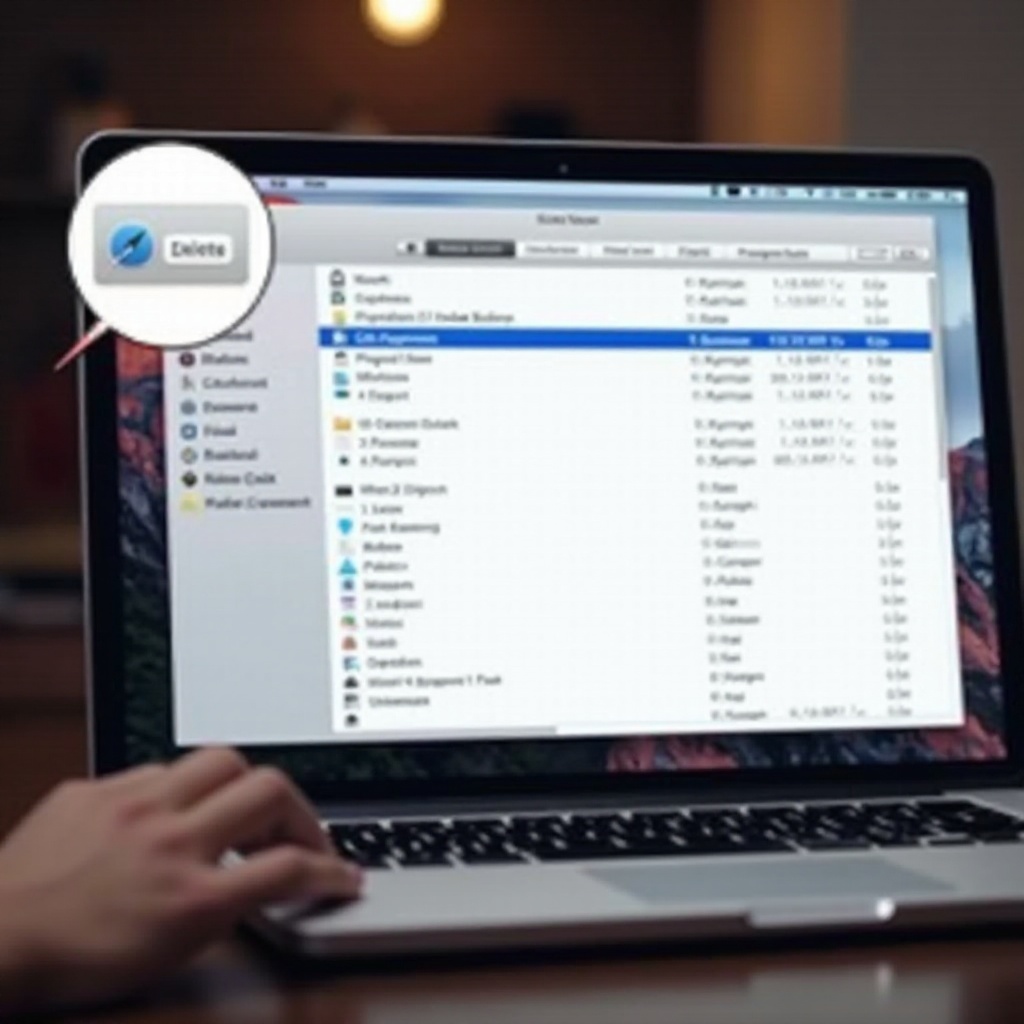
Step-by-Step Guide to Deleting Backups
Now, let’s delve into the process of deleting your MacBook backups across various methods:
1. Delete Time Machine Backups:
– Launch Time Machine by clicking on the Time Machine icon from the menu bar.
– Navigate through the timeline to locate backups you wish to delete.
– Control-click the specific backup and select ‘Delete Backup.
2. Delete iCloud Backups:
– Open System Preferences and click on ‘Apple ID.
– Select ‘iCloud’ and click ‘Manage.
– Identify the backup files and choose ‘Delete.
3. Delete Manual Backups:
– Connect the storage device where manual backups are saved.
– Access Finder and locate the backup folder.
– Select and delete unwanted backup files using the ‘Move to Trash’ option.
Following these steps, your MacBook will regain valuable space previously occupied by outdated backups.
Preventative Measures for Future Backup Issues
After freeing up storage, implementing preventive measures can help avoid future backup issues:
– Setting Up Backup Policies: Establish a regular schedule for reviewing and pruning old backups. Decide which ones are crucial and which can be routinely discarded.
– Tips for Efficient Storage Management: Utilize built-in MacBook storage management tools and applications to automate and monitor storage usage.
With a structured approach to managing backups, you can ensure your MacBook’s storage remains efficient and clutter-free.
Conclusion
Managing backups on your MacBook doesn’t have to be daunting. By understanding what backups exist and assessing their relevance, you can strategically delete unnecessary files and liberate valuable space. Regular maintenance and preventive measures are key to sustaining an optimized storage system. Embrace efficient backup management to keep your MacBook running smoothly.
Frequently Asked Questions
How often should I delete backups?
Regular checks, ideally monthly, can prevent excessive storage use and ensure you only retain necessary backups.
Can deleting backups affect my MacBook’s performance?
Deleting backups frees up space, potentially enhancing device performance. However, ensure essential backups are retained to avoid data loss.
What tools help manage backup storage automatically?
Applications like DaisyDisk and CleanMyMac offer automated analysis and management of storage, aiding in efficient backup management.