Introduction
The Apple Watch is a powerful tool for staying connected, but sometimes users face issues with call notifications not appearing. This guide will walk you through effective troubleshooting methods to address this common concern, ensuring your Apple Watch continues to function optimally.
Understanding Apple Watch Connectivity
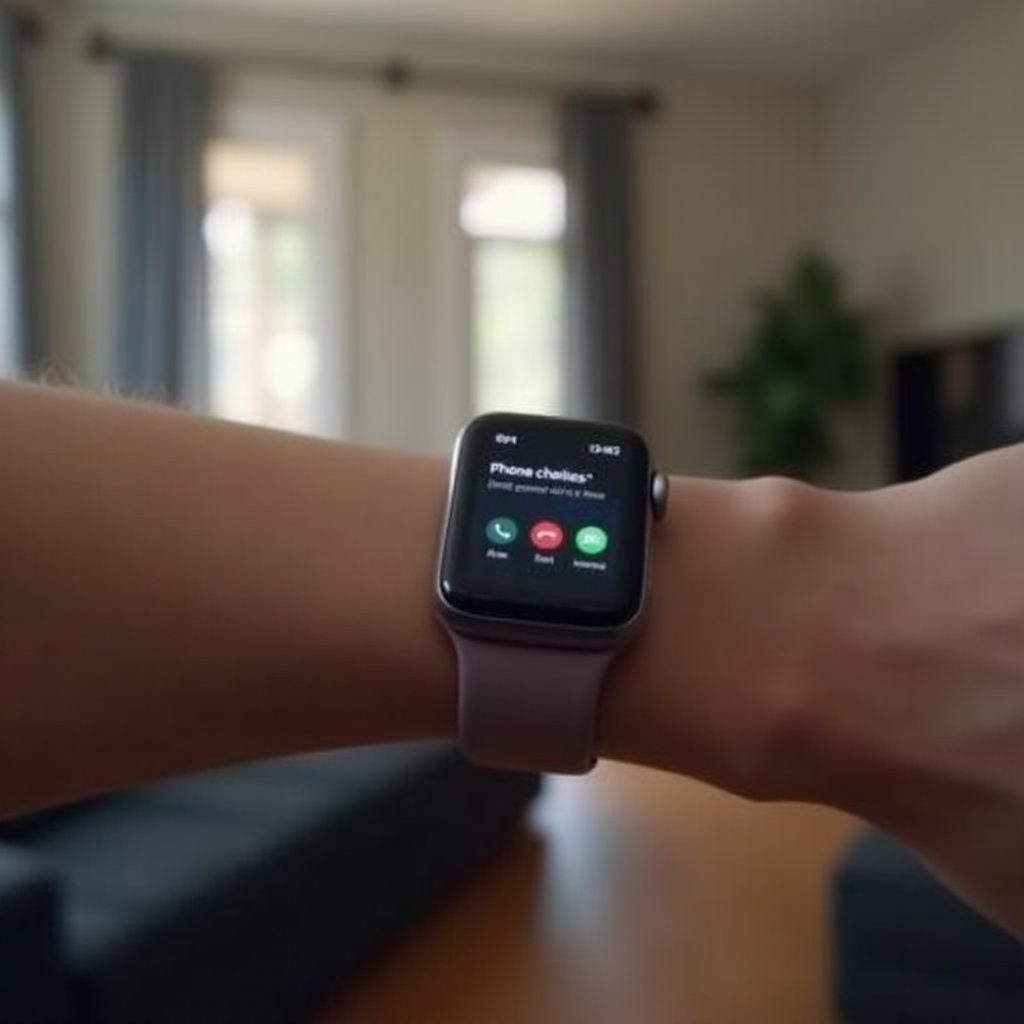
Apple Watch relies on Bluetooth and Wi-Fi connections to sync with your iPhone and deliver call alerts. Disruptions in these connections can lead to missed notifications. Understanding the importance of a strong connection is crucial for resolving call display issues and enhances overall device performance.
Troubleshooting Steps for Call Notification Issues
-
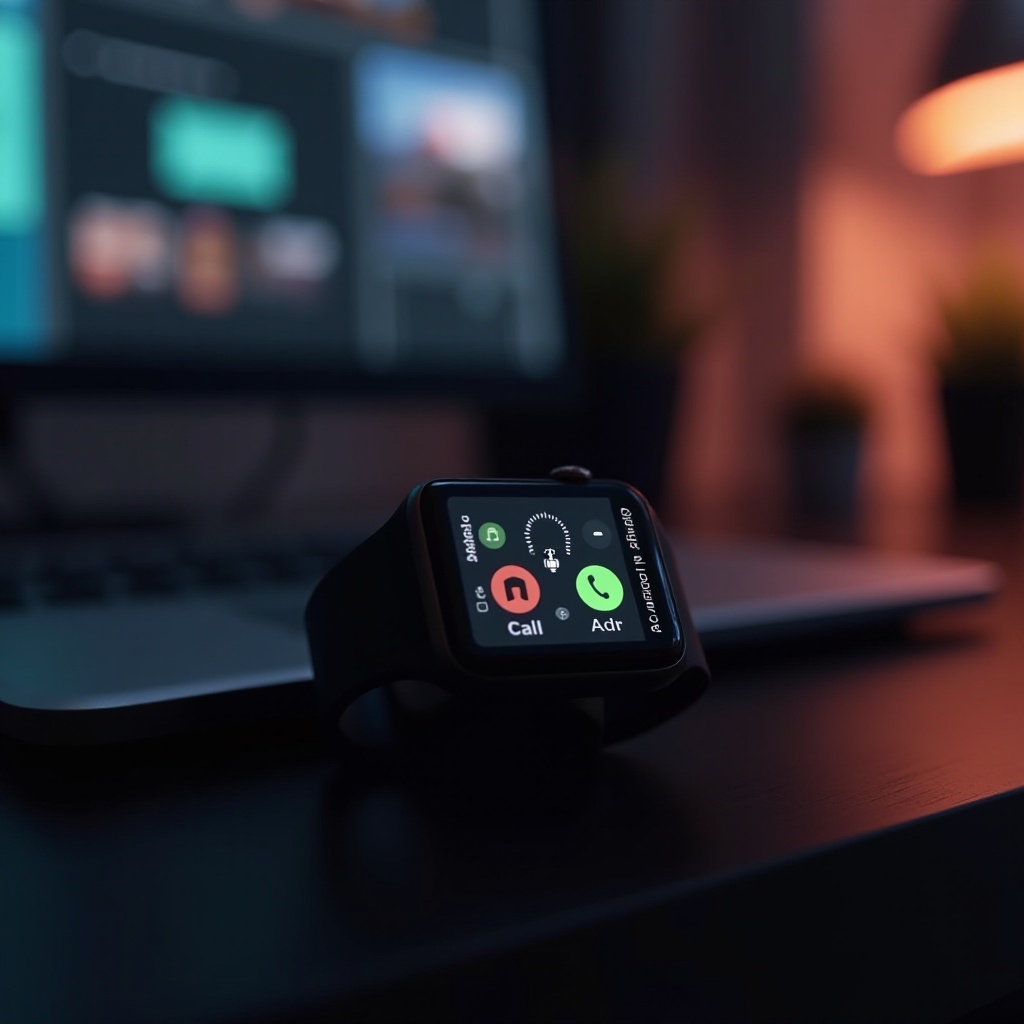
Verify Bluetooth and Wi-Fi Connections: Confirm that Bluetooth is enabled on both your Apple Watch and iPhone and that they’re within range, ensuring a stable Wi-Fi connection if applicable.
-
Review and Adjust Notification Settings: On your iPhone, go to Settings > Notifications. Check if call notifications are enabled and verify that Do Not Disturb is not silencing calls on either device.
-
Restart Devices and Check for Updates: Turning your devices off and then back on can resolve glitches. Ensure your Apple Watch and iPhone have the latest watchOS and iOS updates to avoid notification problems.
After trying these steps, if calls still don’t appear on your watch, it may be time to delve into more advanced troubleshooting solutions.
Advanced Solutions for Persistent Problems
-
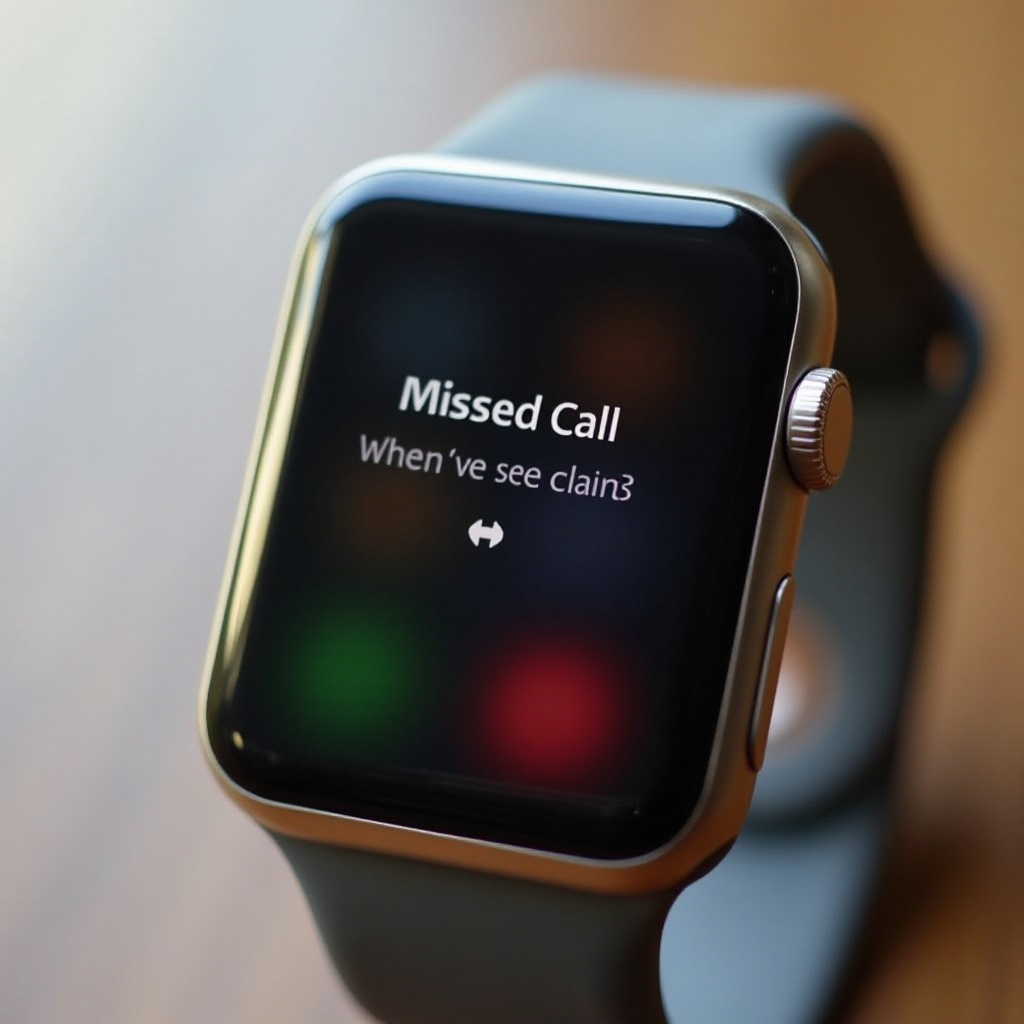
Unpair and Re-pair Your Apple Watch and iPhone: Open the Apple Watch app, select ‘Unpair Apple Watch’, restart both devices, and then repair them. This creates a fresh connection.
-
Reset Apple Watch Settings: On your watch, navigate to Settings > General > Reset > Erase All Content and Settings. Reconnect it with your iPhone anew.
-
Contact Apple Support: Persistent issues may require professional assistance. If troubleshooting hasn’t worked, contacting Apple Support can provide guidance or repair solutions.
Addressing persistent problems often requires these advanced steps. Once resolved, preventative measures can help maintain seamless functionality.
Preventive Measures for Future Issues
Preventive practices are vital for ensuring the longevity and optimal performance of your devices.
-
Regular Software Updates: Regularly updating your Apple Watch and iPhone to the newest software versions ensures bug fixes and improved connectivity.
-
Optimal Device Maintenance: Clean your devices regularly and perform soft resets to keep them running smoothly.
-
Best Practices for User Settings: Customize settings appropriately to balance performance with notification preferences. Adjust Do Not Disturb modes to align with your daily activities.
These preventive measures mitigate the risk of recurring notification issues, helping your Apple Watch deliver consistent performance.
Conclusion
Understanding the functionality, resolving issues, and adopting preventive measures ensure your Apple Watch displays calls without fail. Regular maintenance and updates are key to preserving device efficiency and enhancing your connectivity experience.
Frequently Asked Questions
Why is my Apple Watch not showing call notifications even when paired?
Check both device notification settings and connectivity, and ensure there isn’t an active Do Not Disturb mode silencing calls.
How can I ensure my Apple Watch settings are correct for call notifications?
Verify notification settings on your iPhone and Apple Watch, and confirm that call alerts are enabled and modes like Do Not Disturb aren’t active.
What to do if my Apple Watch frequently loses connection with my iPhone?
Keep both devices updated, reset Bluetooth settings, and ensure they’re within proximity for a stable connection.