Introduction
Connecting a DVD player to a MacBook Air may seem challenging due to the device’s slim design, which omits a built-in DVD drive. Despite the digital streaming revolution, DVDs remain a valuable part of many collections. Whether your DVDs hold cherished memories or important data, accessing them on your MacBook Air can be accomplished with simple steps. This guide explores the solutions for enjoying your DVD collection, including necessary equipment, software options, and viable digital alternatives.
Understanding Compatibility Issues
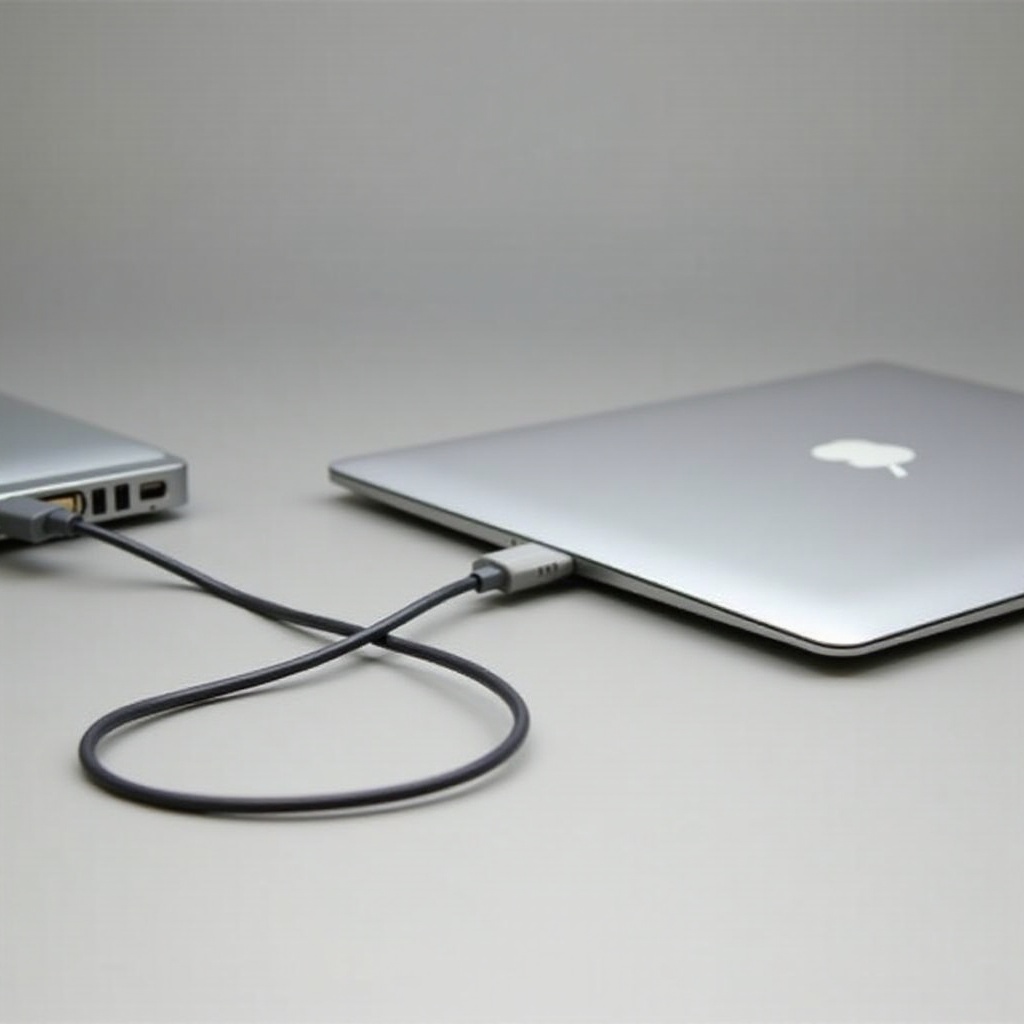
The MacBook Air’s focus on portability explains the absence of a built-in DVD drive. Consequently, external drives become essential for DVD playback. Awareness of compatibility is key:
– MacBook Air’s design prioritizes a sleek, lightweight profile, forgoing certain components, such as integrated DVD drives.
– Achieving compatibility between external DVD players and MacBook Air involves selecting drives that support macOS systems and USB connectivity.
These compatibility insights help determine the equipment needed for DVD playback on your Mac.
Equipment Required for Connection
Compatibility knowledge guides us to the next step: assembling the right equipment to connect the DVD player to your MacBook Air. The market offers several options:
– Recommended External DVD Drives: Select drives known for their speed and reliability, like Apple’s SuperDrive, ASUS, and LG models.
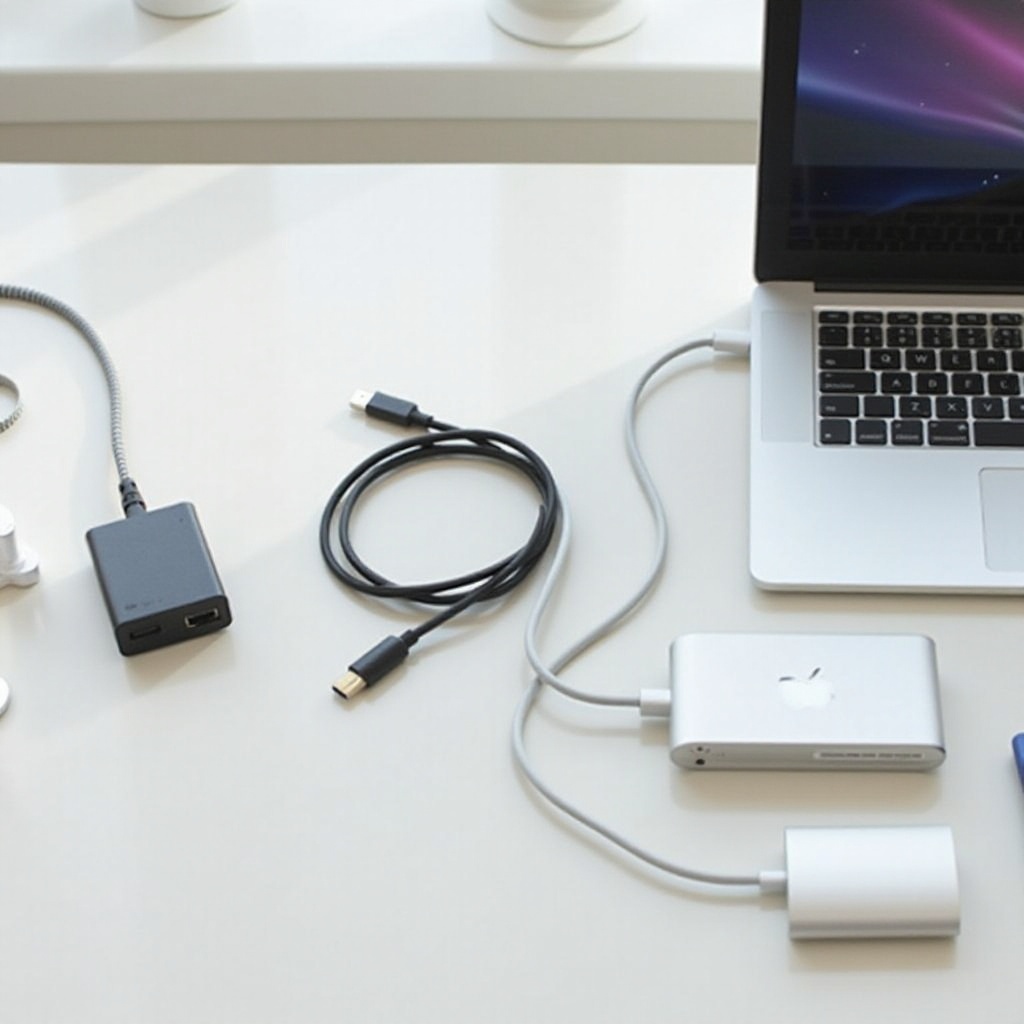
– Necessary Cables and Adapters: USB 3.0 cables ensure swift data transfer. For newer MacBook Air models, have USB-C adapters ready.
With the equipment in hand, you can move on to the technical connection process.
Step-by-Step Connection Guide
Now that your equipment is ready, let’s go through the steps to connect the DVD player:
1. Connecting an External DVD Player via USB:
– Plug the DVD player into a USB port. Use an adapter if your MacBook has USB-C ports.
– The Mac should detect the device automatically. If not, try rebooting and checking connections.
2. Troubleshooting Common Issues:
– Check for unsecured cables or try different USB ports.
– Update your Mac’s OS to ensure it supports connected devices.
Having a successful connection paves the way for software solutions to enable DVD playback.
Software for DVD Playback on MacBook Air
To watch DVDs on your MacBook Air, you need robust software capable of handling DVD data:
– Top Software Options for DVD Playback: VLC Media Player stands out for compatibility with various formats and ease of use.
– Setting Up and Using VLC Media Player: Download VLC from its official site, then open the app to access media options for DVD playback.
Using effective software like VLC ensures smooth playback, fully unlocking your DVD collection.
Alternatives to Watching DVDs
Although you can enjoy DVDs through traditional methods, consider digital alternatives for convenience:
– Digital Copies and Streaming Services: Platforms like iTunes and Netflix provide extensive libraries, removing the need for physical media.
– Digitizing Your DVDs for MacBook Air: Use applications like HandBrake to convert DVDs into digital files that reside on your Mac.
Digital alternatives offer ease and space savings, ensuring your media stays accessible.
Conclusion
With the correct equipment and software, connecting a DVD player to your MacBook Air is manageable. Understanding compatibility, choosing appropriate drives, and using reliable playback tools such as VLC create a seamless process. While digital alternatives provide modern conveniences, maintaining access to physical media enriches your repertoire and tech interactions.
Frequently Asked Questions
Can I use any external DVD drive with my MacBook Air?
Yes, as long as it supports USB connectivity and is compatible with macOS.
What software is best for playing DVDs on a MacBook Air?
VLC Media Player is the most versatile and user-friendly option available.
Are there any alternative ways to watch DVDs without a DVD player?
Consider digital copies and streaming services for easy access without physical discs.