Introduction
Managing screen time effectively is crucial for personal productivity and family safety. If you want to block specific websites on your iPhone to maintain a safe browsing environment or minimize distractions, this comprehensive guide will assist you. We’ll explore various methods to block websites, ensuring a secure digital space for you and your family.
Using Screen Time for Website Blocking
Screen Time, a powerful tool integrated into iOS, allows you to monitor and control device usage. Follow these steps to block websites using Screen Time:
- Accessing Screen Time Settings:
- Open the ‘Settings’ app on your iPhone.
- Scroll down and tap ‘Screen Time.
-
If it’s not activated, tap ‘Turn On Screen Time.
-
Setting Up Content Restrictions:
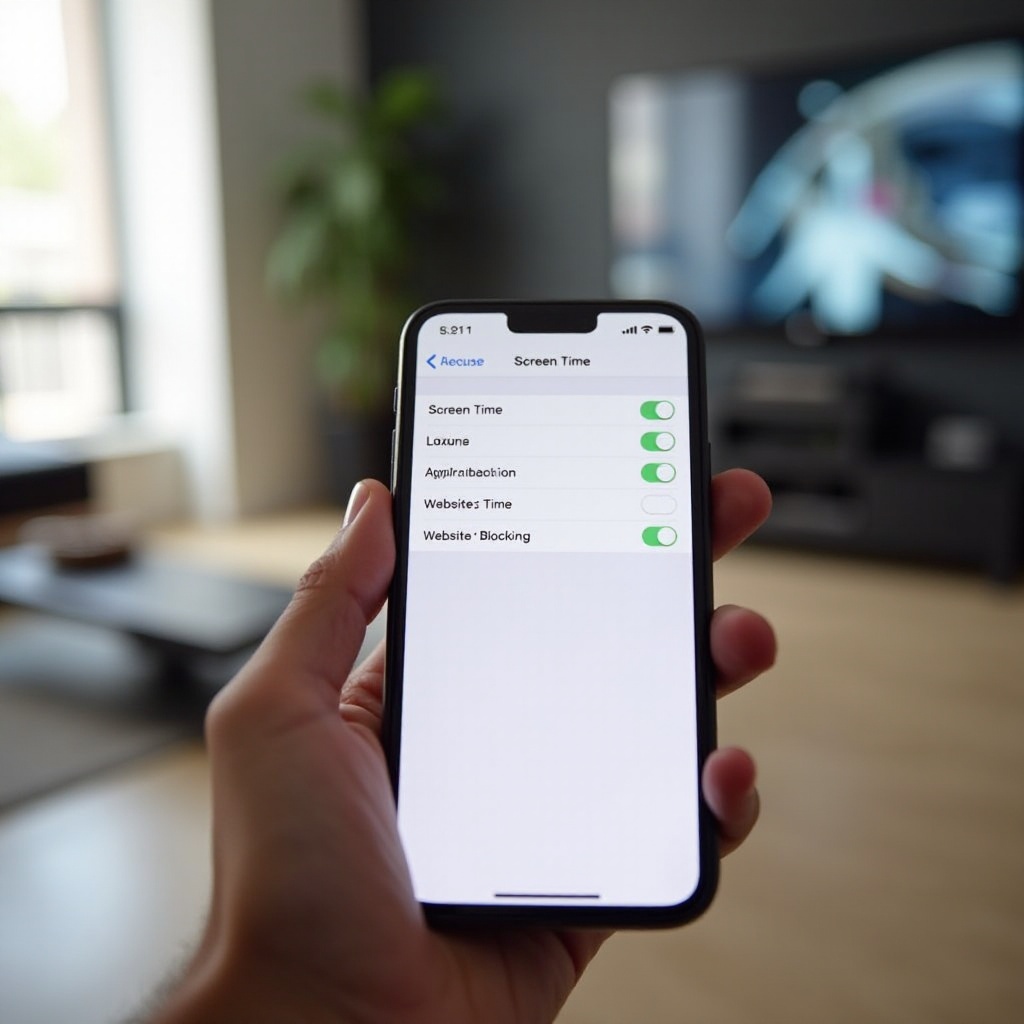
- Within Screen Time, select ‘Content & Privacy Restrictions.
- Toggle the switch to enable restrictions.
-
Tap ‘Content Restrictions’ to explore customizable options.
-
Adding Websites to the Block List:
- Choose ‘Web Content.
- Enable ‘Limit Adult Websites’ for automatic filtering.
- Under ‘Never Allow,’ tap ‘Add Website’ to block specific URLs.
Screen Time provides a straightforward solution to block unwanted content, but exploring third-party apps can offer additional features.
Third-Party Apps for Enhanced Website Blocking
To enhance control over web access, consider utilizing third-party applications. These apps often provide features beyond Screen Time capabilities:
-
Overview of Popular Apps:
Explore tools like Freedom, Net Nanny, and Qustodio, which offer flexibility and advanced options for managing internet access. -
Choosing the Right App for Your Needs:
When selecting an app, assess your specific needs. Net Nanny is ideal for detailed online activity reports, while Freedom excels in promoting productivity by blocking distracting websites.
Once you have explored app-based solutions, expanding control at the network level can be beneficial for broader applications.
Network-Level Solutions to Restrict Access
For comprehensive management, network-level controls help restrict website access through your home network, affecting any device connected to Wi-Fi:
-
Implementing Router-Based Controls:
Log into your router’s admin panel and search for parental controls or access restrictions. Here, you can blacklist specific websites for all devices on the network. -
Pros and Cons of Network Solutions:
The primary advantage is network-wide site blocking across devices, not just on the iPhone. However, these can sometimes be bypassed if someone changes device DNS settings, unless additional security like OpenDNS is configured.
While network-level controls offer wide-ranging protection, exploring alternative methods like VPNs and parental controls can provide a more round-the-clock approach.

Alternative Methods for Restricting Website Access
VPNs and built-in parental controls provide sophisticated restriction options. They serve as powerful alternatives for blocking content:
-
Utilizing VPNs for Additional Control:
VPNs secure your connection and can block certain websites by restricting access to specific domains. -
Parental Controls and Their Advantages:
iPhones are equipped with robust parental controls found in Family Sharing options, allowing guardians to oversee and regulate child access effectively.
Having examined these methods, it’s helpful to understand how to troubleshoot common issues that might arise.
Troubleshooting Common Issues
Even with these protocols in place, occasional technical difficulties might occur. Here’s how to troubleshoot effectively:
-
Resolving Access Problems:
Ensure your iPhone is updated to the latest iOS version. System updates can address bypass workarounds. -
FAQs on Site Restrictions:
Reference Apple’s support resources for specific settings issues related to iPhone restrictions or contact customer service for third-party apps.
Effective restriction measures naturally lead into paths for maintaining a safe browsing environment.
Tips for Maintaining a Safe Browsing Environment
Sustaining a secure browsing environment requires attentiveness and consistent management:
-
Regular Monitoring and Updates:
Regularly review and adjust restrictions, particularly when new sites present concerns. -
Promoting Digital Literacy:
Discuss appropriate online behavior and cyber safety to reinforce respect for digital boundaries and digital intelligence.
Conclusion
Implementing website restrictions on your iPhone is a proactive step in safeguarding productivity and security. By leveraging tools like Screen Time, third-party apps, and network solutions, you can effectively manage web access. Periodically reassess your needs to adapt these strategies to evolving circumstances.
Frequently Asked Questions
How do I unblock a website I previously blocked?
Go to ‘Settings,’ navigate to ‘Screen Time,’ tap ‘Content Restrictions,’ and remove the URL from the ‘Never Allow’ list.
Can I block websites on iPhone without using Screen Time?
Yes, use third-party apps like Freedom or implement router-level blocking for broader coverage.
Why can my child still access blocked sites on their iPhone?
Ensure settings in Screen Time are accurate and restrict changes to device DNS settings with a passcode.