
Changing your iPhone SIM card can be done smoothly with the right guidance. Whether for a carrier swap, plan upgrade, or travel needs, knowing how to replace your SIM card ensures uninterrupted connectivity. This article offers detailed steps, useful pointers, and troubleshooting insights.
Understanding iPhone SIM Cards
Before proceeding with the SIM change, understanding the SIM card’s role is crucial. It connects your phone to the network, enabling calls, texts, and internet access.
What Does a SIM Card Do?
A SIM card stores essential network data, allowing your phone to connect to cell towers. It also holds personal information like your phone number and service details.
Types of SIM Cards: Nano, Micro, Standard
SIM cards come in different sizes: Nano, Micro, and Standard, with most iPhones using Nano SIMs. Knowing your card type is key to ensuring compatibility.
Understanding these basics sets the stage for preparing your device for a SIM card switch, which is our next focus.
Preparing for SIM Card Change
Proper preparation leads to a hassle-free SIM card swap. Follow these preparatory steps:
Essential Precautions Before Beginning
Backup important data on your phone and clear unwarranted files. This secures your data during the SIM replacement.
Gathering Necessary Tools
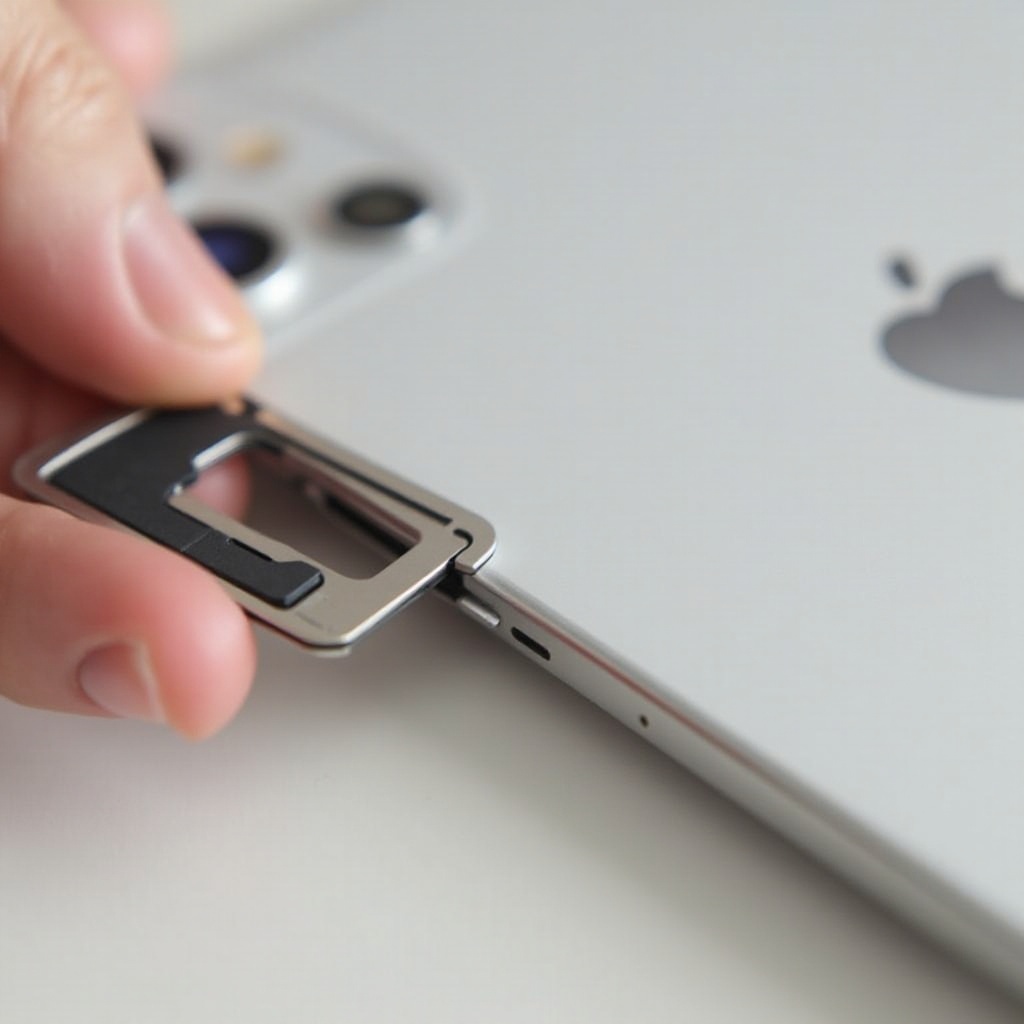
You’ll need a SIM eject tool, usually provided with your iPhone purchase, or a paperclip as an alternative.
Ensuring Phone is Powered Off
Switch off your iPhone to prevent any potential damage during SIM tray manipulation. This keeps your phone safe and primes it for the network change.
With preparation complete, we’ll guide you through the SIM card change process step-by-step.
Step-by-Step Guide to Changing Your iPhone SIM Card
Having set the groundwork, changing your SIM card involves easy steps:
-
Locating the SIM Tray
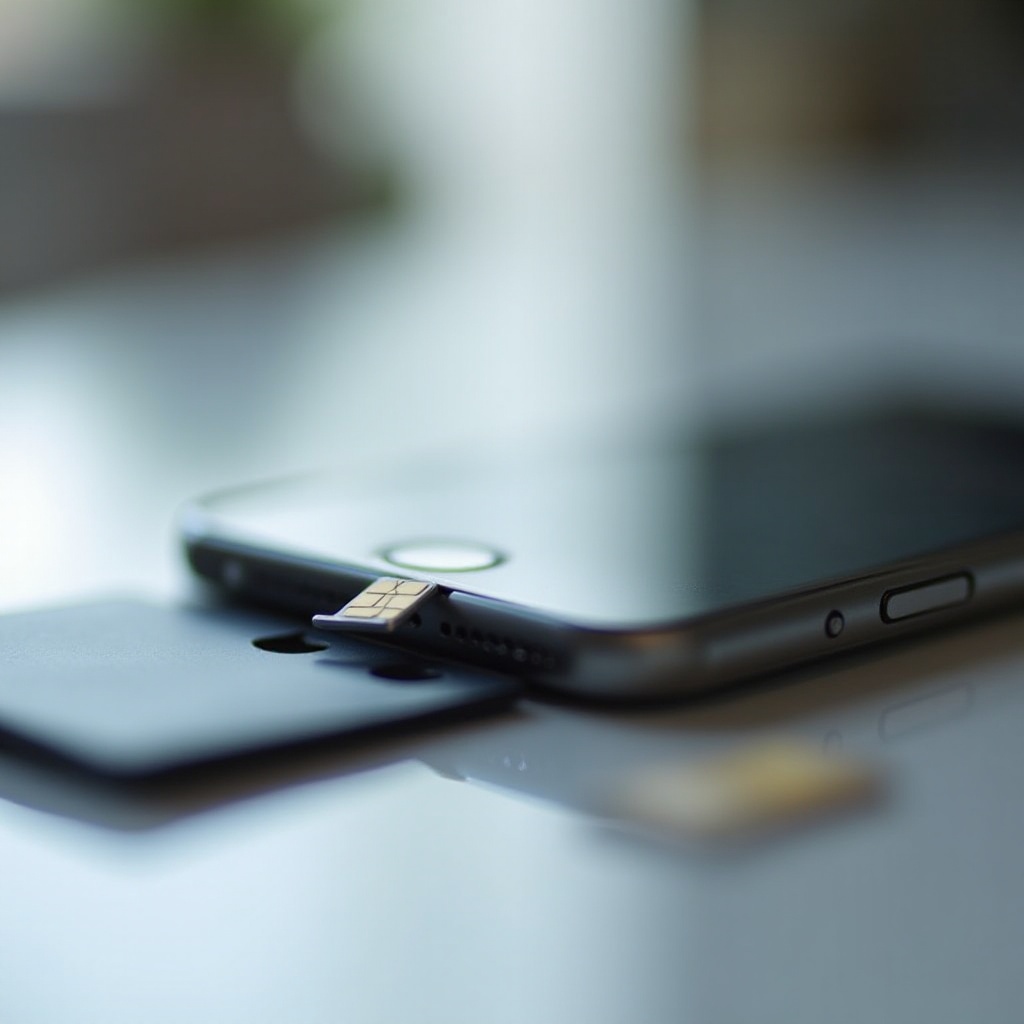
The SIM tray is usually on the right side of your iPhone. Look for the small slot with a pinhole beside it. -
Using the SIM Eject Tool
Insert the SIM eject tool into the pinhole on the tray and apply gentle pressure to release the tray. -
Removing and Inserting the SIM Card
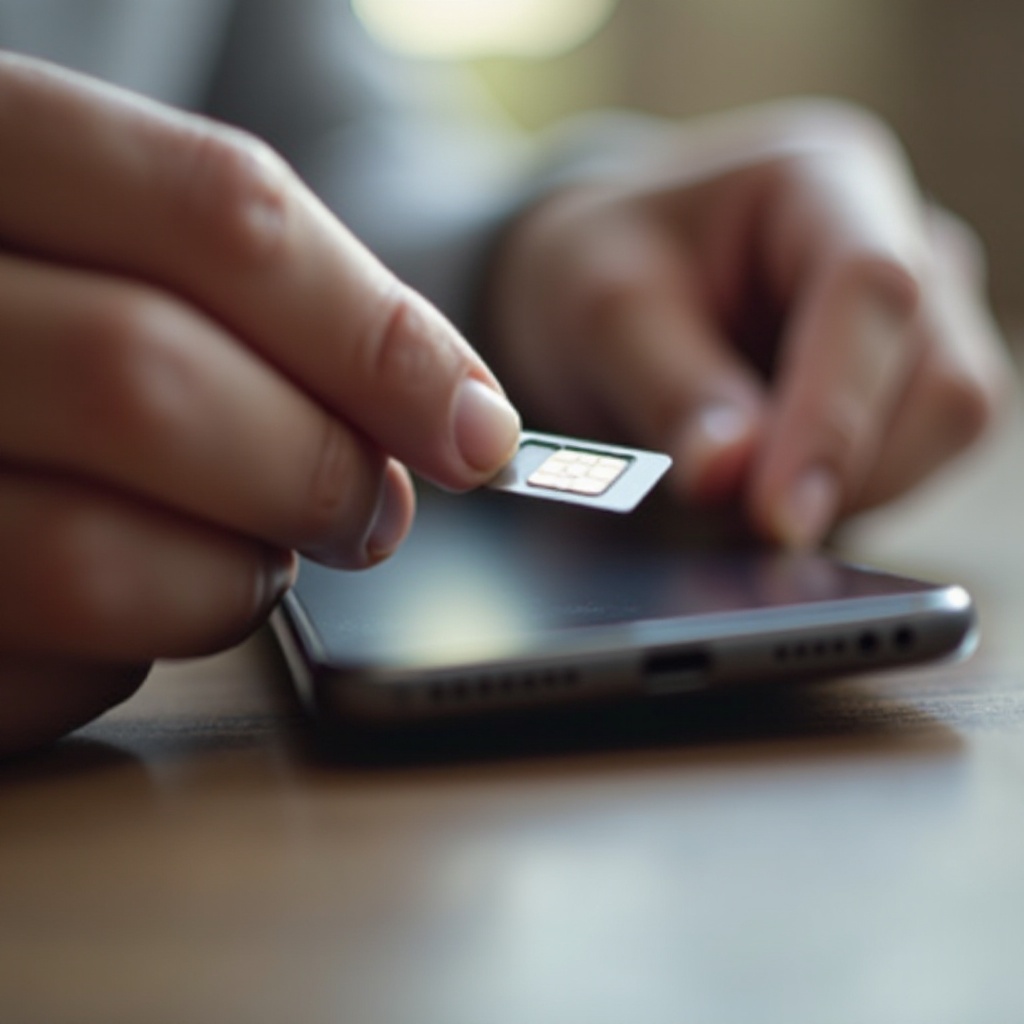
Carefully take out the old SIM card and place the new one in the tray, aligning it properly. Slide the tray back into position securely.
After completing these steps, it’s essential to ensure your device connects smoothly to the network, as detailed next.
Post-Change Procedures: Ensuring Everything Works
After changing the SIM card, verifying network functions maintains operational smoothness.
Verifying Network Connectivity
Turn your iPhone on and watch the signal bars appear. If no signal shows, restart your phone to refresh its network settings.
Adjusting Settings if Necessary
Check your network settings under ‘Cellular’ to ensure everything is configured correctly for calls and data.
Experiencing issues post-SIM change is rare but solvable with appropriate troubleshooting, as explained here.
Troubleshooting Common SIM Card Issues
Resolving technical problems promptly ensures your iPhone functions as intended:
SIM Card Not Recognized: Solutions
If your SIM card isn’t detected, check its placement and confirm the tray is fully inserted. Restart your device if needed.
Addressing Connectivity Problems
For persistent connectivity issues, reset network settings by going to ‘Settings > General > Reset’ and choosing ‘Reset Network Settings.’
Your iPhone should now operate correctly. Expert tips on handling SIM cards can help prevent future issues.
Expert Tips for Handling iPhone SIM Cards
Proper SIM card management ensures longevity and ease of future swaps.
Safe Handling and Storage
Place old SIM cards in a dry, safe area, avoiding direct contact with the chip to prevent damage.
When to Seek Professional Help
If troubleshooting fails, contact your carrier or visit an Apple store for professional support.
In conclusion, changing any iPhone SIM card is straightforward with these clear instructions and guidance.
Conclusion
Learning how to change your iPhone SIM card ensures continued connectivity and device functionality. Follow this comprehensive guide for each swap, enhancing your phone management skills under varying circumstances.
Frequently Asked Questions
How can I tell if my SIM card needs changing?
Frequent connection issues, outdated carrier data, or upgrading plans often necessitate a SIM change.
What should I do if I lose my SIM eject tool?
Use a small paperclip or purchase a replacement eject tool from electronics stores. Avoid sharp objects that might damage the phone.
Is changing the SIM card enough to switch carriers?
Alongside changing the SIM, you might need to unlock your device. Contact your carrier for specific instructions on switching networks.