Introduction
Managing incoming communication on your iPhone is crucial to preserving your peace and privacy. Whether avoiding persistent marketers or personal contacts, blocking specific callers offers a powerful tool against unwanted intrusions. This guide provides detailed instructions to help you access and manage your blocked list with ease, extending your control over phone interactions.
Understanding the Blocked List Feature on iPhone
Blocked lists play an essential role in managing your communication privacy effectively.
What is the Blocked List?
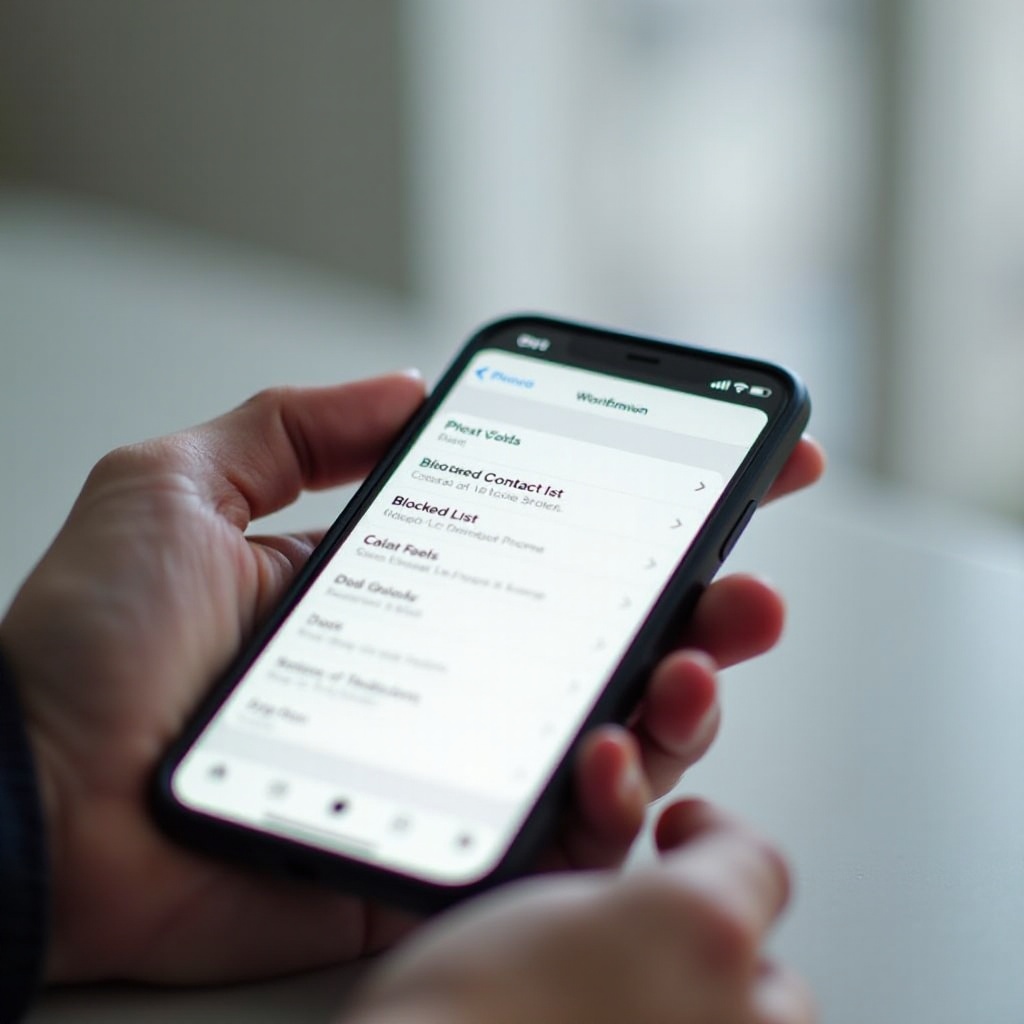
Apple’s blocked list feature allows users to prevent calls, messages, and FaceTime requests from specific contacts, promoting privacy and control. By enabling this feature, your phone silences disturbances, ensuring a calm communication sphere.
Importance of Using the Blocked List
Blocking contacts serves both personal and security functions. It aids in filtering unsolicited calls and messages, reducing spam, and curtailing harassing interactions. Using this feature positions users to enjoy seamless and secure communications free from interference.
As we delve deeper, understanding the mechanics and advantages equips users to utilize this feature effectively.
Step-by-Step Guide to Accessing Your Blocked List
Once you recognize the importance, accessing your blocked list is the next step. Here’s a clear path to navigate iPhone settings:
- Navigating iPhone Settings
- Open the Settings app on your iPhone.
-
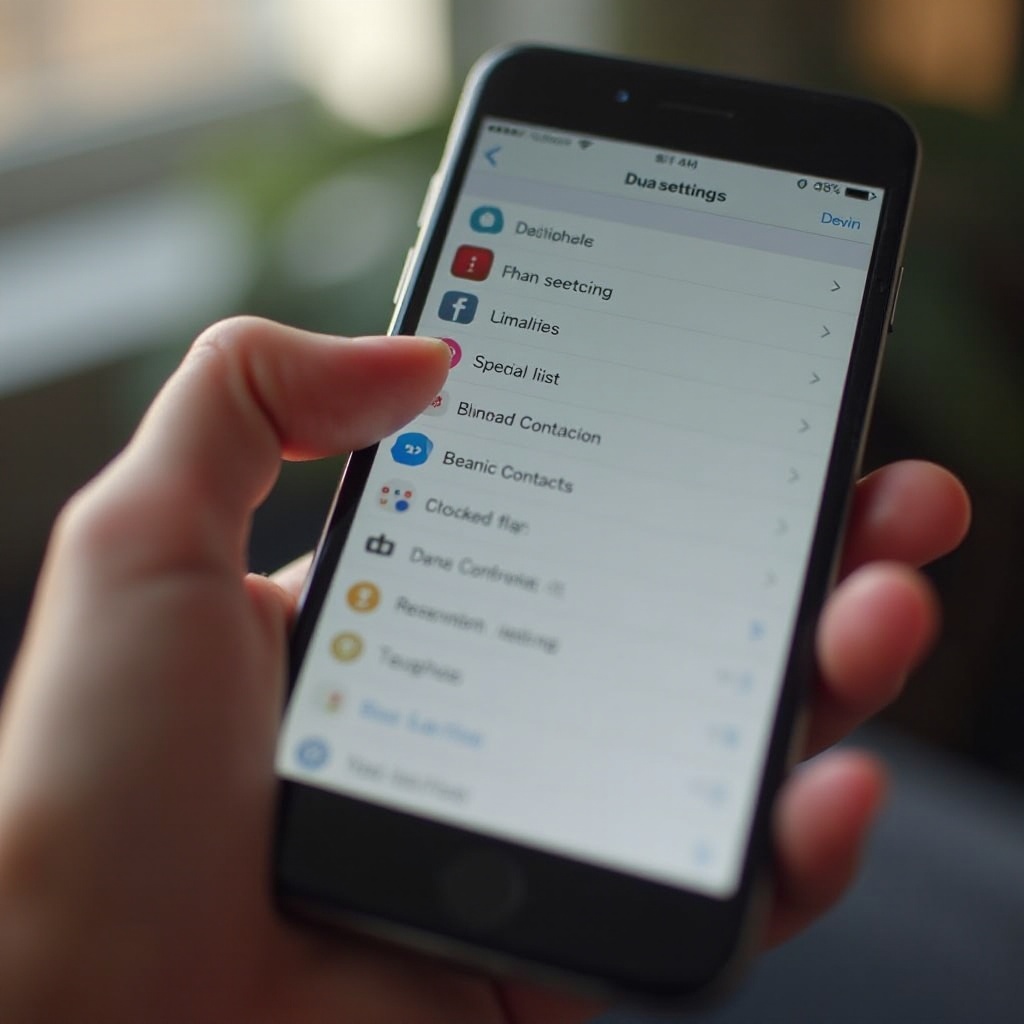
Scroll down and select ‘Phone.’ You can also choose ‘Messages’ or ‘FaceTime’ for related blocks.
-
Visual Guide to Finding the Blocked List
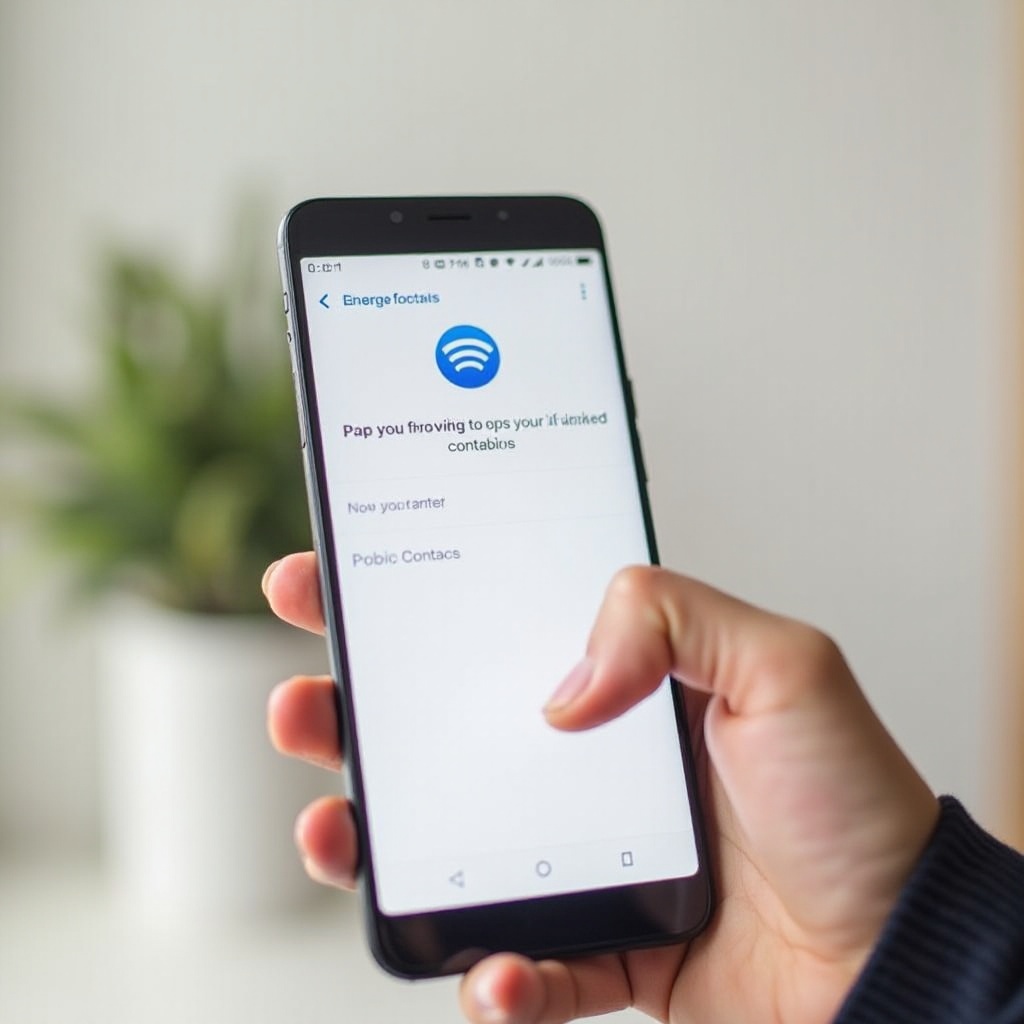
- Within ‘Phone’ settings, find the ‘Blocked Contacts’ section.
- Tap on it, and view the complete list of blocked numbers and contacts.
These straightforward steps ensure smooth access to the blocked list, serving as a gatekeeper for your communication space.
How to Manage and Update Your Blocked Contacts
Navigating your blocked list enables effective contact management according to evolving needs:
Adding Contacts to the Blocked List
To block contacts, browse your list, select the contact, and tap ‘Block this Caller.’ Confirmation adds them to your blocked list.
Removing Contacts from the Blocked List
For unblocking, revisit your blocked list, tap ‘Edit,’ and click the minus sign to remove specific contacts. Confirm by touching ‘Done.
Regular Review for Better Management
Regularly reviewing your blocked list is crucial. As interactions evolve, reassess your list to align it with current communication preferences, ensuring names are updated and reflecting your current needs.
These management strategies provide flexible control over who reaches your phone, aligning personal and professional communication needs.
Troubleshooting Common Issues
Sometimes, interactions with the blocked list feature encounter obstacles. Here’s how to navigate and solve common problems efficiently:
Problems Accessing the Blocked List
Ensure your iOS is updated regularly to access all settings effectively. Restarting your device can solve minor glitches too.
Solutions to Common Blocking Issues
Blocked calls might appear due to technical settings with your service provider. Contact them for configuration adjustments that could solve these issues.
These solutions enable users to maintain seamless blocked list usage, ensuring optimal privacy without hassle.
Expert Tips for Enhanced Privacy
Beyond active blocking, enhance your phone’s privacy settings comprehensively:
Integrating Blocking with Other Privacy Features
Utilize additional features like ‘Do Not Disturb’ or ‘Silence Unknown Callers.’ Tailoring these settings provides layered privacy against disruptions.
Keeping Updated with iOS Enhancements
Frequent updates provide the latest security features. Keep your iOS current to benefit from new features that improve blocked list effectiveness.
Implementing these privacy tips creates a robust communication defense, ensuring your interaction spaces remain uninterrupted and secure.
Conclusion
Effective use of your iPhone’s blocked list feature enhances control and privacy over communication. By understanding features and settings, employing management strategies, troubleshooting issues, and implementing expert advice, users optimize phone use while securing the peace of their digital environments.
Frequently Asked Questions
How can I tell if someone has blocked me on their iPhone?
Typically, blocked calls don’t connect and messages show no delivery status. Confirmation is challenging without direct communication.
Why can’t I see changes to my blocked list?
Ensure your device is updated. Occasionally restarting can refresh settings visibility if discrepancies persist.
Do blocked numbers still appear in my call log?
Blocked numbers typically don’t appear in call logs, effectively minimizing their notifications on your device.