Introduction
Facing an issue where your iPhone won’t charge past 1% can be frustrating and keep you disconnected. It’s crucial to understand why your device is stuck at this critical charging point so you can get back to using your phone effectively. This guide provides insights into identifying, troubleshooting, and resolving the charging problem, whether it’s caused by hardware glitches or software hiccups.
Understanding the Charging Problem
If you find your iPhone stuck at this charging limit, several factors could be influencing it. Understanding these causes facilitates more efficient problem-solving.
- Common Causes: The problem might arise from defective charging cables, damaged ports, battery health issues, or software errors. Identifying the failure points is vital to troubleshooting effectively.
- Impact on Device Functionality: Remaining at such low battery levels doesn’t just hamper connectivity but limits app usage, data access, and calling capabilities, making the resolution critical for productivity.
Once the root cause is identified, action can progress towards resolving the issue and restoring normal device functionality.
Initial Troubleshooting Steps
Before going to advanced solutions, attempt these fundamental troubleshooting methods to address the charging problem:
- Restart Your iPhone: A simple restart may resolve software glitches obstructing the charging process. Press and hold the power button, swipe off, and restart.
- Inspect Charging Accessories: Ensure use of the Apple-provided charger and cable, checking for any frayed wires or bent pins. Faulty or third-party accessories often result in charging failures.
These initial steps could fix minor issues, allowing normal charging. If they don’t work, further steps are required.
Software-Based Solutions
If the problem persists beyond initial steps, software may be causing the issue. Address it using these tactics:
- Update iOS: Verify your iPhone uses the latest iOS version, as updates resolve bugs and enhance functionality. Check for updates under Settings > General > Software Update.
- Reset Settings: If the issue remains, consider resetting settings. Navigate to Settings > General > Reset > Reset All Settings; returning the iPhone to default settings sans data loss.
These software-driven approaches often clear charging issues, but if they persist, pursue advanced methods.
Advanced Techniques to Resolve Charging Issues
For stubborn charging issues, examine advanced recovery strategies:
- Recovery Mode: If the device doesn’t respond, implement recovery mode. Connect to your computer, open iTunes, and enter recovery mode through designated button sequences. Follow instructions displayed.
- DFU Mode Restore: Deeper than recovery mode, Device Firmware Update Mode reloads the firmware and software. Connect the iPhone to a computer, initiate DFU mode and restore in iTunes carefully.
Understand these methods before use—improper use risks data loss. If discomfort arises, seek professional assistance.
Seeking Professional Help: When to Visit a Service Center
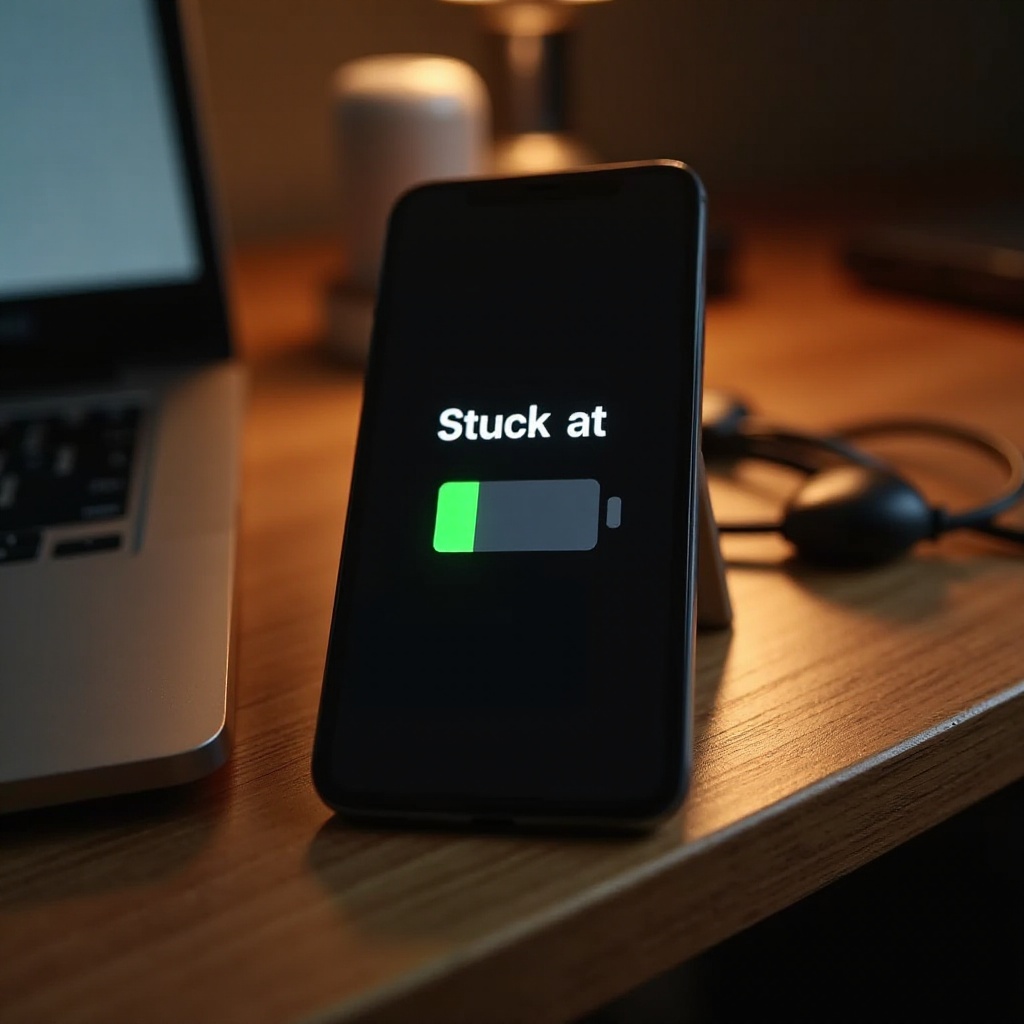
Should advanced methods falter, the problem might be hardware-linked; engaging expert help is advised.
- Identifying Hardware Issues: Signs like bloated batteries or malfunctioning ports necessitate technician evaluation.
- Apple Support and Service Options: Contact Apple Support or visit an authorized service center for reliable diagnosis and repair using genuine parts.
Aligning troubleshooting with professional service prolongs device life and improves performance.
Preventive Measures for Future Charging Problems
Prevent future charging challenges by adhering to these practices:
- Battery Care Tips: Keep software updated routinely, avoid extreme temperatures, and follow optimal charging methods to maintain battery health.
- Proper Use of Accessories: Favor certified Apple chargers, diligently store cables, and examine them for damage regularly.
Adopting these measures bolsters your iPhone’s enduring health and performance.
Conclusion
By applying this exhaustive guide, your iPhone should resume normal charging operations. Keep in mind, consistent care and upkeep avert future mishaps, ensuring you’re always connected and equipped.
Frequently Asked Questions
Why does my iPhone battery drain quickly after charging past 1%?
The battery may drain quickly due to app activity, background processes or a failing battery that requires assessment.
Can a bad update cause charging issues on my iPhone?
Yes, software bugs from poor updates can disrupt charging functionality. Updating to the latest version typically resolves this.
Is it necessary to replace my battery if my iPhone doesn’t charge past 1%?
Battery replacement might be necessary if other troubleshooting fails, indicating underlying hardware issues.